Compress PDF: Shrink File Size Without Wrecking It
Compress a PDF free in your browser. Learn what makes PDFs big, how much you can save, and how to shrink one with no upload. Your files stay private.
You go to email a PDF and the attachment bounces: "file too large." Or the upload form caps you at 10 MB and your scanned contract is 34. A PDF that opens fine on your screen suddenly won't travel. The fix is compression: squeezing the file down while keeping it readable, and you can do it for free in about twenty seconds with our Compress PDF tool, without uploading the file anywhere.
This guide covers what actually makes a PDF big, how much you can realistically save, and the honest trade-offs so you don't blur a document you needed crisp.
Why your PDF is so large in the first place#
A PDF isn't one thing: it's a container. Text and vector graphics are tiny; the weight almost always comes from embedded images. A single phone photo dropped into a page can be 4–8 MB on its own, and a scanned document is nothing but images: every page is a full-resolution picture of paper.
That's the key insight for compressing effectively:
- Scanned or photo-heavy PDFs can shrink by 50–90%. There's a lot of image data to re-encode.
- Text-only PDFs (a report exported from Word, a text-based invoice) barely move, often just a few percent. There simply isn't much to compress, and any tool promising a "10× smaller" miracle on a text file is being dishonest.
Knowing which kind of PDF you have tells you what to expect before you start.
How compression actually shrinks a PDF#
Two things happen under the hood, and neither touches your text:
- Image re-encoding. The embedded raster images are re-saved as JPEG at a quality level you choose. Drop from "pristine" to "good enough for screen," and a 6 MB image can become 400 KB. Your selectable text and vector lines stay perfectly sharp because they're never rasterized.
- Object repacking. The file's internal structure is rewritten using object streams, dropping unused padding and packing everything tighter. This adds a modest extra saving on top of the image work.
That's the whole trick. There's no magic, just smarter image encoding plus tidier bookkeeping.
Step 1: Open the Compress PDF tool#
Head to convertowl.com/compress-pdf. Nothing to install, no account. The conversion runs entirely inside your browser using WebAssembly image codecs, so your PDF is never uploaded to a server, which matters when the document is a signed contract, a medical form, or anything you'd rather not hand to a third party. Files up to 100 MB are supported.
Step 2: Add your PDF#
Drag the file onto the page or click to browse. Because there's no upload step, it's ready to work the instant the file is read, with no progress bar crawling to 100% before anything happens.
Step 3: Set the image quality#
Drag the quality slider to balance size against sharpness. Around 60% is the sweet spot for most documents with photos or scans: images soften just slightly, but it's hard to notice at normal viewing sizes. Go lower for maximum shrinkage on a rough draft; go higher if the images need to stay crisp for print.
Step 4: Check the result and download#
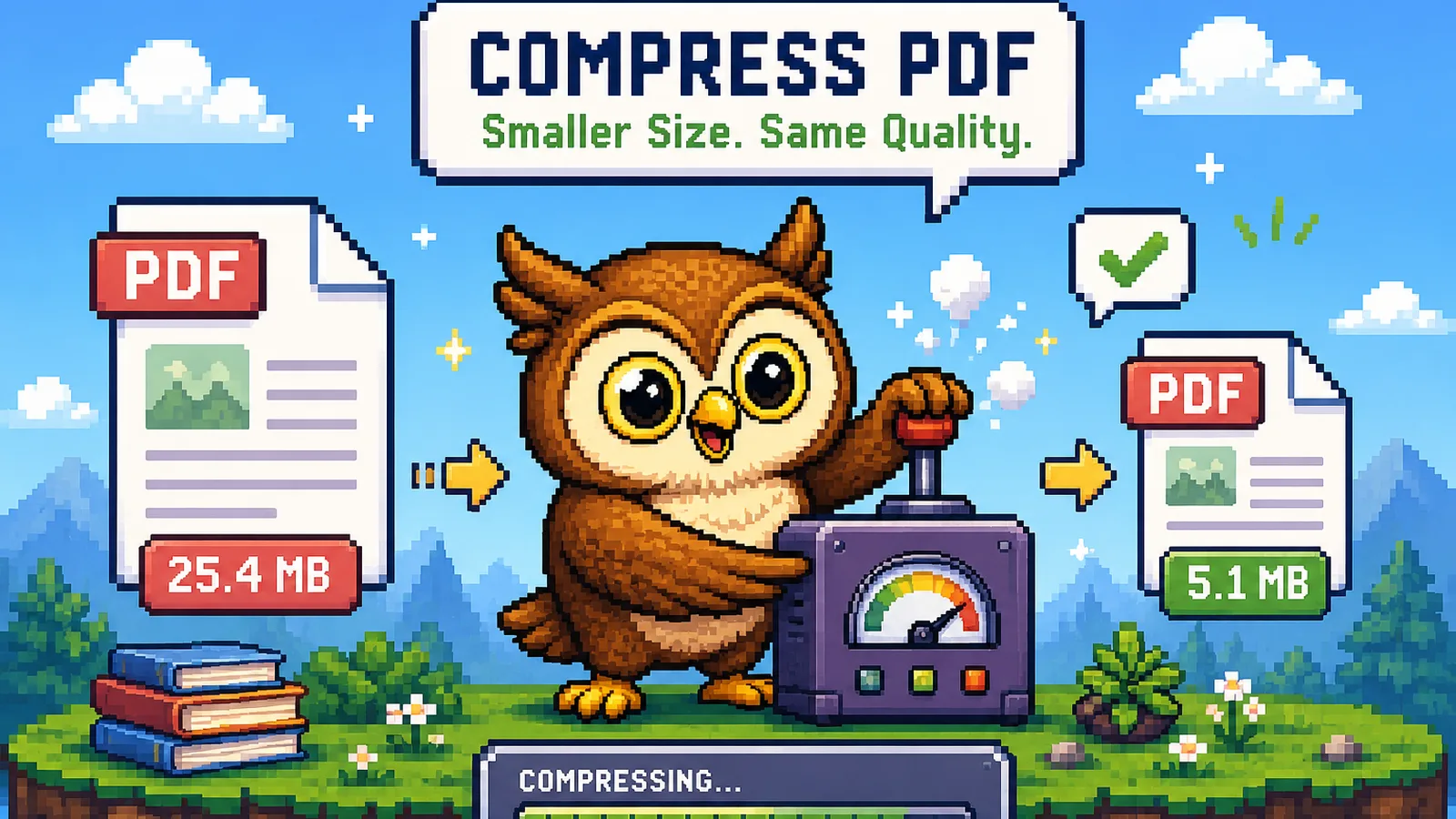
The tool shows the exact before-and-after size and the percentage saved: the real number, not a promise. If a scanned PDF dropped from 25 MB to 5 MB, download it. If a text-heavy file barely budged, keep your original; you've lost nothing by checking, since it all ran locally and instantly.
How small do you actually need it?#
Most "too big" errors come from a handful of hard limits. A few common ones:
| Where you're sending it | Typical size cap |
|---|---|
| Gmail attachment | 25 MB |
| Most contact / upload forms | 5–10 MB |
| Outlook attachment (default) | 20 MB |
Compress to comfortably under the cap and you're done. If a single PDF still won't fit after compression, it's usually a giant multi-page scan, and the better move is to split it.
When compression isn't the right tool#
Compression re-encodes what's there. Sometimes the real problem is that the file contains more than you need to send:
- Only need a few pages? Use Split PDF to pull out just the pages that matter. Sending pages 1–3 of a 200-page manual beats compressing all 200.
- Just need the pictures, not the document? PDF to JPG turns each page into an image you can drop into a slide or a chat.
- Combining several files that are each fine on their own? Merge PDF first, then compress the result once.
Reaching for the right tool often beats compressing harder.
Is it safe to compress a confidential PDF?#
Yes, and this is where a browser-based tool has a genuine edge. Server-based compressors receive a full copy of your file to process it; the document leaves your device and sits on someone else's machine. ConvertOwl's compressor does the work locally in your browser, so the PDF never leaves your computer. For anything sensitive, that's not a nice-to-have: it's the point.
The honest summary#
- Big PDFs are almost always big because of images; compressing re-encodes those images and leaves your text crisp.
- Scans and photo-heavy files shrink dramatically; text-only files barely change. That's normal.
- Aim for the size cap you actually need (25 MB for email, ~10 MB for forms), check the real before/after number, and download only if it's worth it.
- When the issue is too many pages rather than too much weight, split instead of compress.
Ready to shrink one? Open the free Compress PDF tool, drop your file, and watch the number drop: no upload, no watermark, no account.
Try the tools
Free, private, and instant. Everything runs in your browser.