How to Convert Image Files Online for Free
Convert HEIC, WebP, AVIF, or PNG images online for free, right in your browser. No signup, no upload, no watermark. Here's how it works and why it's safe.
You've got a photo in a format that won't open, upload, or display where you need it to: an iPhone HEIC that a Windows app rejects, a WebP image a client's ancient software can't read, an AVIF download that won't attach to an email. The fix doesn't require installing anything. You can convert image files online for free, and if the tool runs in your browser, your photos never have to leave your device to do it.
This guide covers how free online image converters actually work, what to check before trusting one, and the steps to convert your first file.
Why image format mismatches happen so often#
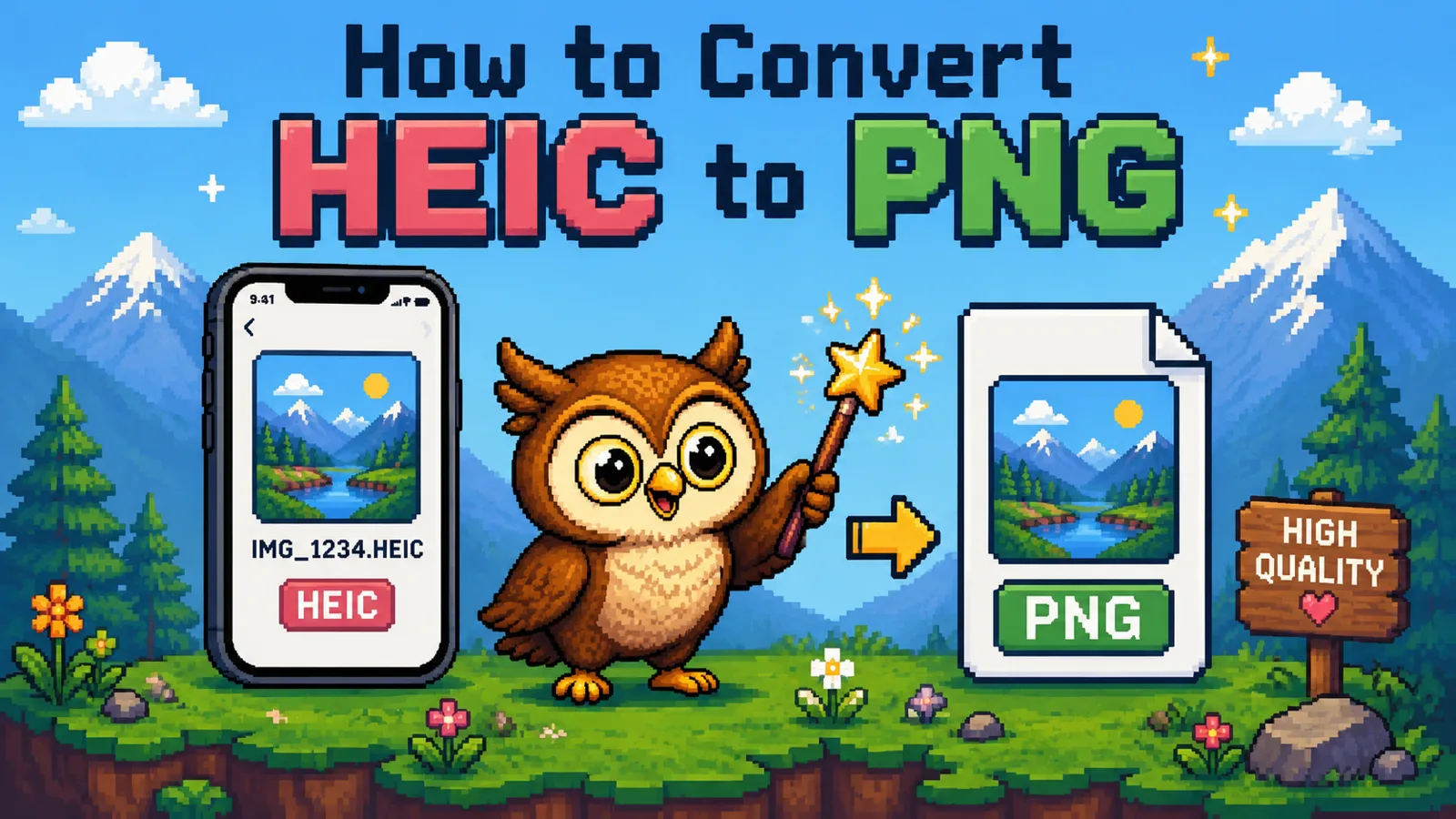
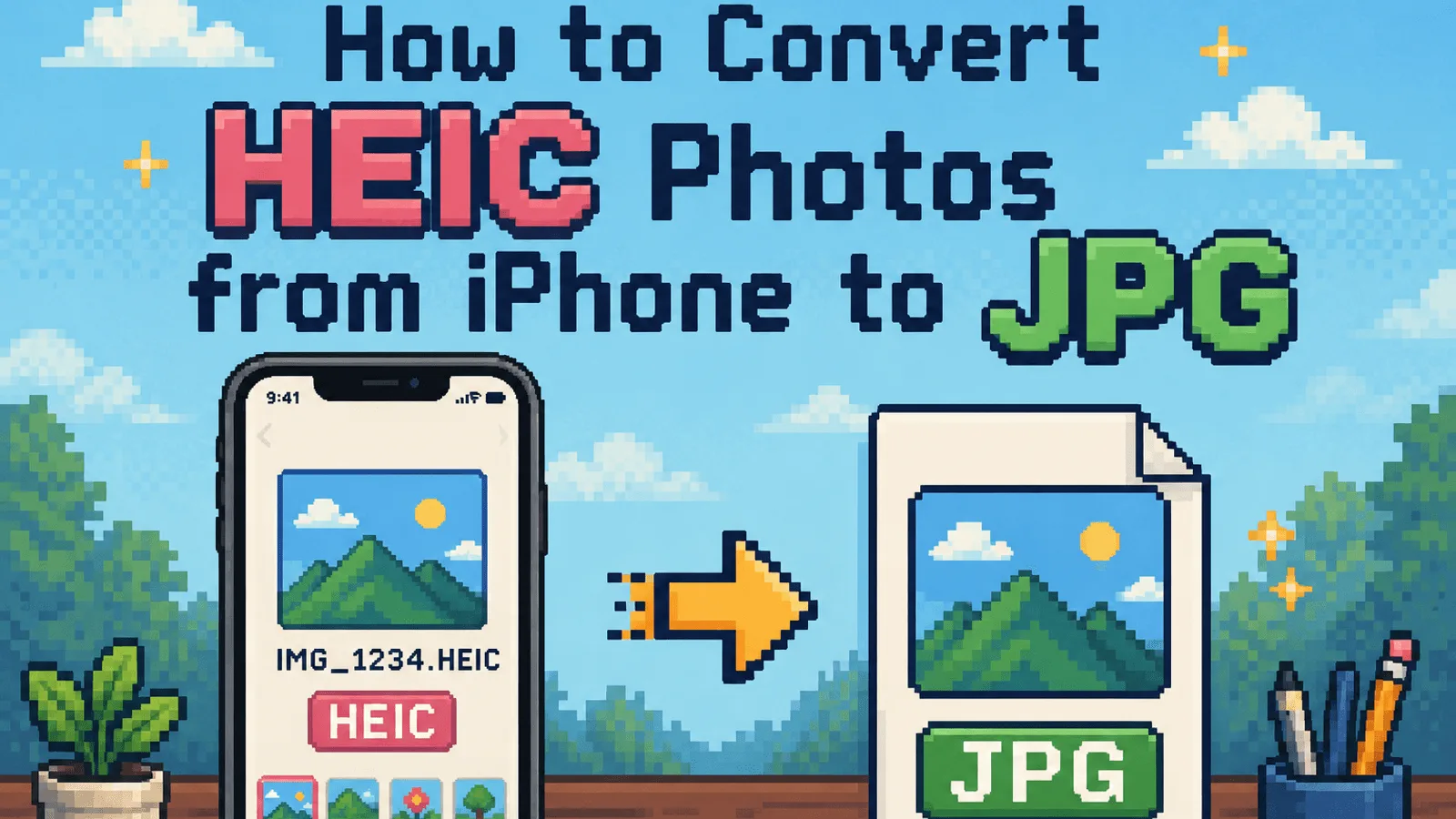
Cameras, phones, and websites keep adopting newer formats faster than the software that has to read them catches up. iPhones save photos as HEIC by default because it's smaller than JPG at the same quality. Websites serve WebP and increasingly AVIF because they shrink page weight and load faster. Both are genuine improvements, but a lot of older software, some Windows photo viewers, some CMS uploaders, some print shops, only knows JPG and PNG. The result is a photo that's perfectly valid but unreadable wherever you're trying to use it next.
Converting isn't a workaround for a broken file. It's translating a still-good image into the format the next tool in line actually understands.
What "online and free" should actually mean#
Not every converter marketed as free behaves the same way once you start using it. Before you upload anything, it's worth checking a few things:
- Does the file actually leave your device? Many "free" converters are really free uploads to someone else's server, which processes the image and sends it back. That's an extra copy of your file sitting somewhere you don't control, even if it's deleted afterward. A converter that runs client-side, using WebAssembly in your browser, never uploads the file at all.
- Is there a hidden limit? Some free tiers cap file size or daily conversions, then ask you to pay past that. Check before you commit to a workflow.
- Does it add a watermark or strip metadata you wanted to keep? Some free tools quietly downgrade the output to push you toward a paid version.
A genuinely free, private converter processes the file locally and hands you back exactly what you'd expect: the same image, a different format, nothing added or removed.
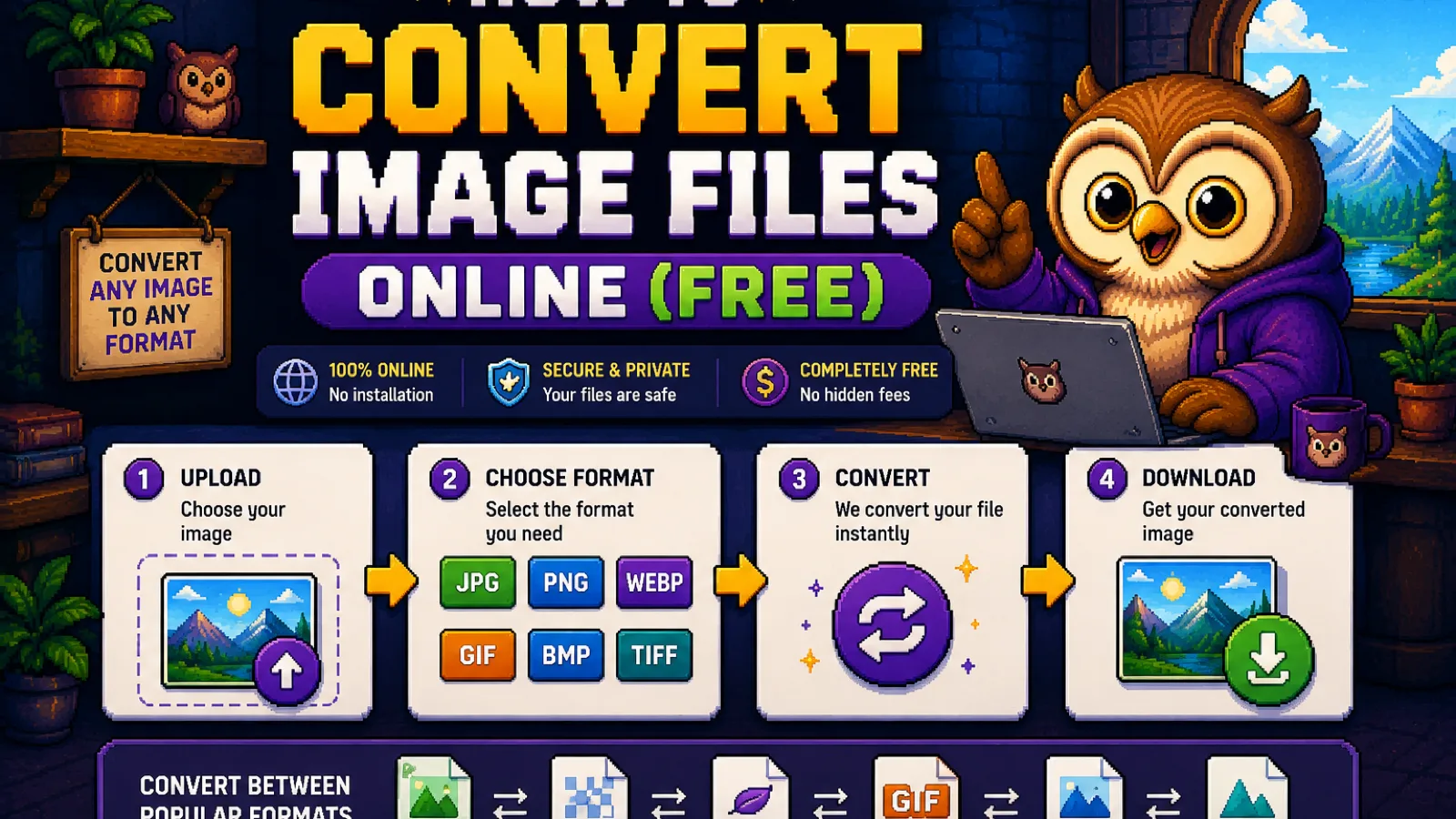
Step 1: Pick the converter for your format pair#
Head to the tool that matches what you have and what you need. A few of the most common conversions:
- HEIC to JPG for iPhone photos that need to open anywhere.
- WebP to JPG for images downloaded from the web that a program won't accept.
- PNG to WebP for shrinking images before uploading them to your own website.
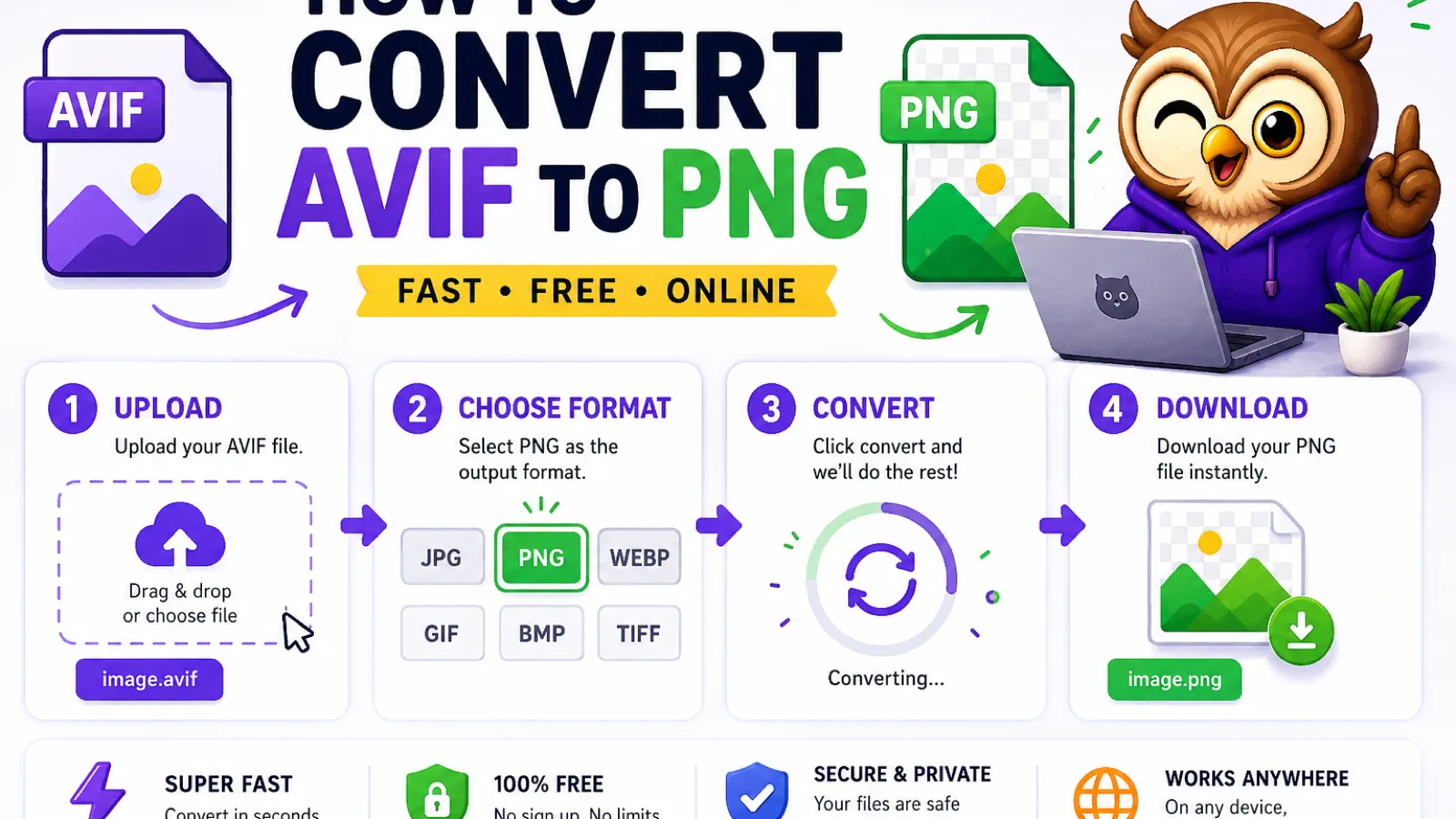
- AVIF to PNG for AVIF files that need to go somewhere without AVIF support.
Each tool is a dedicated page, not a generic "upload anything" form, so the settings and output are tuned to that specific pair.
Step 2: Drop your file in#
Drag the image onto the page, or click to browse and select it. There's no account to create and no email to hand over. If the tool runs client-side, you'll notice there's also no upload progress bar crawling toward 100%: the browser already has the file, so there's nothing to send anywhere.
Step 3: Adjust quality if the tool offers it#
Some conversions, especially anything ending in JPG, let you set a quality level. Higher keeps more detail and a larger file; lower shrinks it further. For a normal photo you're sharing or uploading, the default setting is usually a safe, unnoticeable middle ground. If you plan to compress the result afterward anyway, a slightly lower setting here won't cost you anything you'd have kept.
Step 4: Download the converted file#
The output downloads straight to your device, already in the format you need. No extra click through an ad page, no waiting for a server queue. If you're converting several photos at once, look for batch support on the tool page. Most of ConvertOwl's image converters, including HEIC to JPG, handle multiple files in one pass.
Is it actually safe to convert a private photo online?#
Yes, provided the converter runs the conversion in your browser rather than on a server. That distinction matters more than most sites make it sound. A server-based converter necessarily receives a full copy of your image to process it, meaning the file leaves your device and sits, even briefly, on hardware you don't control. A browser-based converter using WebAssembly does the decode-and-re-encode work locally, so the image data never crosses the network. For a passport photo, a medical scan, or anything you'd rather not hand to a third party, that's not a minor detail, it's the whole reason to pick one tool over another.
Does converting lose quality?#
It depends on the pair. Converting between lossy formats (JPG, WebP, HEIC, AVIF at typical settings) always involves some re-encoding, so a second, third, or fourth round-trip can compound small losses, though a single conversion at a sensible quality setting is rarely visible to the eye. Converting to PNG is lossless: nothing is thrown away, which is also why PNG files tend to be larger. If you need the image to stay editable and pixel-perfect for later work, convert to PNG; if you need it small and shareable, JPG or WebP.
What if I need to convert dozens of images at once?#
Batch conversion is the difference between a two-minute task and an afternoon. Check the tool page for batch support before you start; most of ConvertOwl's image tools accept multiple files in a single drop, so you're not repeating the same four steps fifty times.
Can I convert an image without installing any software?#
Yes. Every converter linked in this guide runs directly in your browser tab: no download, no install, no browser extension required. That's the entire appeal of a client-side converter over a desktop app you'd otherwise need to keep updated.
What's the difference between HEIC, WebP, and AVIF?#
They're three separate answers to the same problem: making image files smaller without losing much visible quality. HEIC is Apple's format, used by default on iPhones since iOS 11. WebP is Google's format, widely used on the web because most browsers support it natively. AVIF is the newest of the three and typically compresses even further, but has the least universal support in older software. JPG and PNG remain the two formats almost everything can open, which is why converting toward them is usually the goal.
The honest summary#
- Convert image files online for free by using a tool built for your specific format pair, not a generic "any file" uploader.
- Check whether the conversion actually runs in your browser before trusting it with anything private; a WebAssembly-based tool never uploads your file.
- PNG conversions are lossless; JPG, WebP, and AVIF involve some re-encoding, so pick based on whether you need editability or a small, shareable file.
- Batch support saves real time if you're converting more than a couple of images at once.
Browse the full image tools category to find every conversion pair ConvertOwl supports, or jump straight to HEIC to JPG, WebP to JPG, PNG to WebP, or AVIF to PNG if you already know what you need.
Try the tools
Free, private, and instant. Everything runs in your browser.