How to Compress Files into a ZIP Folder
Compress any files into a ZIP folder free, right in your browser. No upload, no signup, and your files never leave your device.
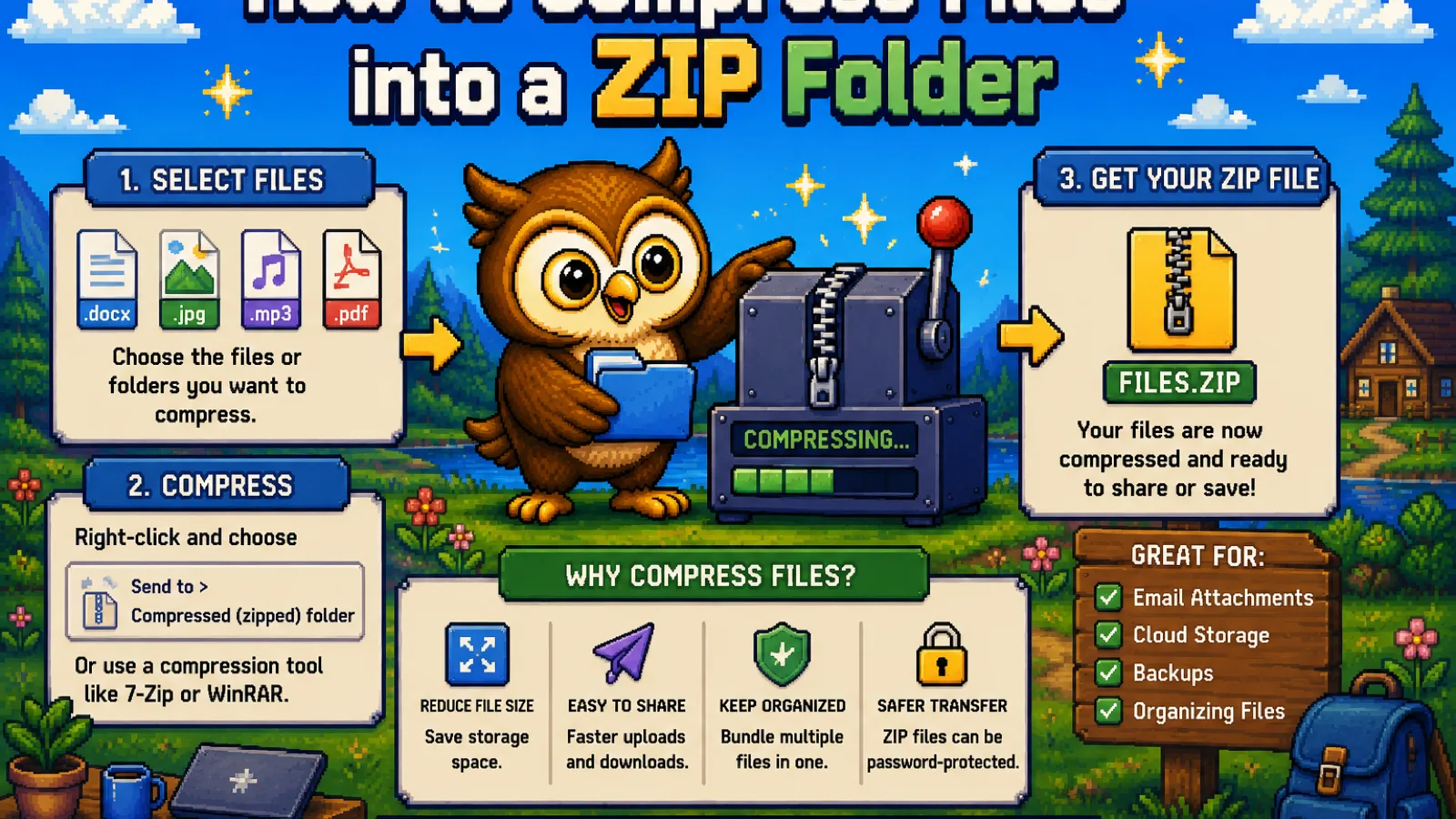
You've got a folder full of files, photos, documents, whatever, and you need them to travel as one thing: one attachment, one upload, one download link. That's what a ZIP folder is for. It bundles multiple files into a single compressed archive, so instead of sending twelve separate attachments you send one. Our Create ZIP tool does this entirely in your browser, no upload and no signup, in about as long as it takes to drag your files onto the page.
This guide covers how to actually zip files, what's happening when you do, and when zipping isn't the tool you actually need.
What a ZIP folder actually is#
A ZIP file is a container, not a new file format for your content. Open one and you get back the original files, unchanged, just packed together. Two things happen when files go into a ZIP:
- Bundling. Every file you add keeps its own name and folder structure inside the archive, so a ZIP of a project folder unzips back into the same folder layout.
- Compression. Each file is run through a compression algorithm (DEFLATE, in the standard ZIP format) that looks for repeated patterns in the data and stores them more efficiently. How much this shrinks the file depends entirely on what's inside, more on that below.
That's the whole idea: one file in, one file out, nothing rearranged or converted.
Step 1: Open the Create ZIP tool#
Go to convertowl.com/create-zip. Nothing to install, no account required. The archiving engine loads only once you add a file, so the page itself opens instantly.
Step 2: Add your files#
Drag all the files (or an entire folder) onto the page, or click to browse and select them. You can add a handful of documents or a large batch of photos in one pass; there's no artificial file-count limit, only the practical limit of what your browser can hold in memory for very large batches.
Step 3: Create the ZIP#
Click to build the archive. Because everything runs locally using WebAssembly, this happens in your browser tab in a second or two, even for dozens of files, with no upload progress bar to sit through.
Step 4: Download your ZIP folder#
Download the single .zip file. It contains every file you added, at full original quality, ready to attach to an email, upload to a form, or hand off however you need to send it.
Why some files barely shrink when zipped#
If you've ever zipped a folder of photos or videos and been surprised the ZIP is nearly the same size as the originals, that's expected, not a bug. Compression only works on data that has repeating, predictable patterns to squeeze out:
- Text, spreadsheets, and uncompressed documents compress well, often 50% or more, because they're full of repetition (the same words, the same formatting codes) that DEFLATE can exploit.
- JPGs, PNGs, MP4s, and most photos or videos are already compressed formats. Their internal data looks close to random to a ZIP algorithm, so there's little left to squeeze, and the ZIP might only save a few percent, if anything.
If your goal is specifically to shrink large photos or videos rather than bundle them, Compress Image or Compress PDF will do far more than zipping alone, since they re-encode the image or document data itself instead of just packing it.
Step 5: Getting your files back out#
To open a ZIP someone sent you, or one you made earlier, use the Extract ZIP tool. Drop the .zip file in and it unpacks the original files, in their original folder structure, ready to download individually or all at once. Like the ZIP creator, extraction happens locally, so the contents of the archive never touch a server either.
For more archive and file-organization tools, browse the full utilities category, which covers ZIP creation and extraction alongside other everyday file tasks.
Is it safe to zip confidential files online?#
Yes, with the same caveat that applies to any "online" tool: check whether it actually uploads your files. Many web-based ZIP tools work by sending your files to a server, bundling them there, and sending the archive back, which means a copy of your files sits on someone else's machine, even briefly. ConvertOwl's ZIP tool runs the whole process locally in your browser using WebAssembly, so your files are never uploaded anywhere. For a folder of tax documents, contracts, or anything else you'd rather not hand to a third party, that's the difference that matters.
FAQs#
What does it mean to zip a file? Zipping a file means packing it, along with any others you choose, into a single .zip archive that preserves the original files and typically reduces the overall size through compression.
Does zipping files reduce their size? It depends on the file type: text and document files often shrink significantly, while already-compressed formats like JPG, PNG, and MP4 shrink very little because there's not much repeating data left to compress.
Can I zip files without installing software? Yes, a browser-based ZIP tool like Create ZIP builds the archive locally in your browser tab, so there's nothing to download or install.
Is it safe to upload sensitive files to an online ZIP tool? It's safe specifically when the tool processes files locally in your browser rather than uploading them to a server, which is how ConvertOwl's ZIP tool works.
How do I open a ZIP file I received? Use an extraction tool such as Extract ZIP, which unpacks the original files from the archive back into their original folder structure.
Is there a limit to how many files I can zip at once? ConvertOwl doesn't set an artificial file-count limit; the practical ceiling is how much your device's memory can hold when working with a very large batch.
Ready to bundle your files? Open the free Create ZIP tool, drop your files in, and download one archive: no signup, no upload, no watermark.
Try the tools
Free, private, and instant. Everything runs in your browser.