How to Compress MP4 Video Files (Free, No Upload)
Shrink an MP4 video without wrecking the quality. Learn what actually makes MP4s big and how to compress one free, right in your browser.
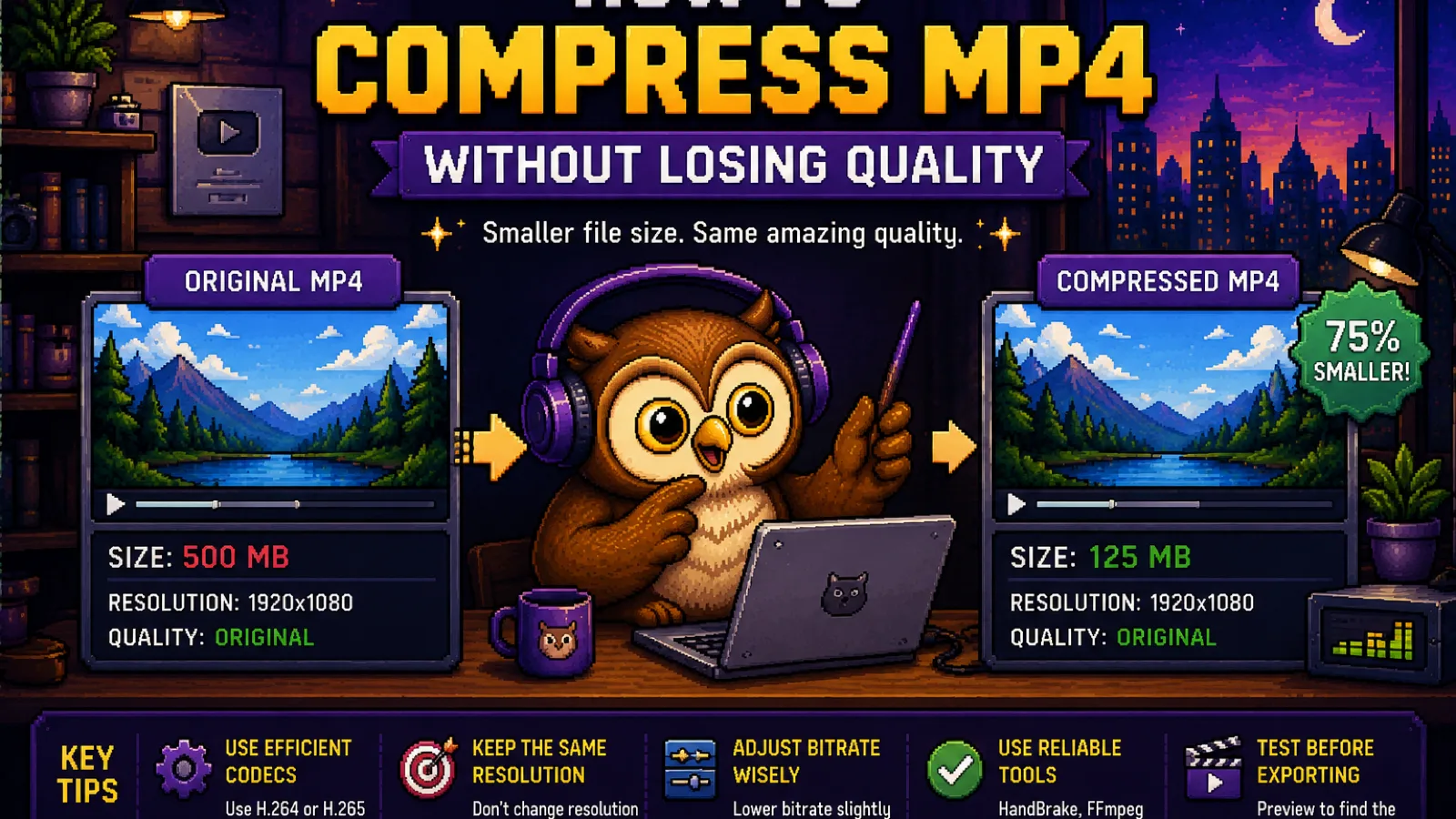
Your MP4 is too big to email, too big to upload to a form with a size cap, or just taking forever to send over a slow connection. Most "video compressor" sites want you to upload the file to their server first, wait in a queue, then download a watermarked result. None of that is necessary. ConvertOwl compresses video entirely in your browser using WebAssembly, so the file never leaves your device, and you can see the real before-and-after size before you commit to anything.
This guide covers what actually makes an MP4 large, the two real ways to shrink one, and how to pick between them.
Why your MP4 is so large in the first place#
Video files are big because every second of footage is dozens of full frames, and how much room those frames take up depends entirely on the codec and bitrate used to encode them. A phone recording 4K video at a high bitrate for future-proofing produces a much bigger file than the same footage would need for, say, posting to a website or attaching to an email. The resolution and length matter too, but bitrate is usually the biggest lever: it's the amount of data allotted to each second of video, and most footage is recorded with more of it than a typical viewer will ever notice.
That means there's real room to shrink most MP4s without a visible quality hit, as long as you re-encode with a smarter setting rather than just relying on the original recording defaults.
The two ways to actually shrink an MP4#
Re-encode into a more efficient codec. MP4 almost always wraps H.264 video, a reliable but no-longer-cutting-edge codec. Converting to WebM with VP9 encoding typically produces a file 20 to 40 percent smaller at the same visual quality, because VP9 packs the same picture into less data. The trade-off is that WebM isn't universally supported outside browsers, so it's the right move for a file you're hosting on a website or sharing with someone who'll play it in Chrome, Firefox, or Edge, less so for a file you need to open in an arbitrary desktop video player.
Strip the audio track. If a video doesn't need sound (a silent background loop, a screen recording you're about to add narration to), removing the audio with our Mute Video tool cuts file size immediately with zero quality loss to the picture, since only the audio stream is dropped and the video is copied as-is. This is a much smaller saving than re-encoding, but it's instant because the video itself is never touched.
Re-wrapping a file's container without changing the codec, like running it through MOV to MP4, doesn't shrink an MP4 further since it's already in that container, but it's the right first step if your original footage is a large ProRes-based MOV from an iPhone or Mac and you want a smaller, more compatible starting point before you compress.
Step 1: Pick the right tool for your case#
If you're serving the video on a website or don't need it to open in every desktop player, use Convert MP4 to WebM for the biggest size reduction. If the video has no audio you care about, run it through Mute Video first, or instead, depending on how much you need to save.
Step 2: Upload your file#
Drag your MP4 onto the tool, or click to browse. Files up to 500 MB are supported. Because the conversion runs locally, there's no upload progress bar to wait through before the actual work starts.
Step 3: Let FFmpeg do the encoding#
The tool runs FFmpeg (compiled to WebAssembly) directly in your browser tab. For WebM conversion, that means VP9 video at a quality setting tuned for a strong size-to-quality trade-off, plus Opus audio. This is more computationally intensive than a simple format swap, so larger files take longer, especially on an older laptop, but nothing is sent anywhere while it works.
Step 4: Compare the sizes and download#
Once it finishes, check the resulting file size against the original. If a 40 MB clip becomes a 25 MB WebM, that's a real, visible number, not a marketing promise. Download it if the savings and format fit your use case; if not, you've lost nothing by checking, since it all happened instantly and locally.
How much do you actually need to save?#
Most "too big" errors trace back to a specific limit. A few common ones worth compressing against:
- Gmail attachment limit: 25 MB.
- Most website contact or upload forms: 10 to 25 MB.
- Discord's free-tier upload limit: 25 MB (10 MB on some older accounts).
If your video still won't fit after compression, the file is probably long enough that the fix is trimming length or lowering resolution rather than squeezing the same footage harder. For sharing over messaging apps where video isn't practical at all, converting to an MP4 to GIF clip works for short, silent snippets instead.
Is it safe to compress a personal or work video in the browser?#
Yes, and this is one of the clearer cases where a browser-based tool matters. A server-based video compressor needs a full copy of your file to process it, meaning your footage, whatever it shows, sits on someone else's machine for however long the job takes. ConvertOwl's tools decode, re-encode, and re-package the video using WebAssembly running locally in your browser tab, so the file is never uploaded or transmitted anywhere. For a work screen recording, a family video, or anything you'd rather not hand to a third-party server, that's the actual guarantee, not a privacy policy promise.
The honest summary#
- MP4 file size comes down to codec and bitrate, and most footage is recorded with more bitrate than you'll ever notice.
- Converting to WebM gives the biggest real reduction, at the cost of narrower playback support.
- Removing audio helps when a video doesn't need sound, but it's a smaller saving than re-encoding.
- Compress to comfortably under whatever limit you're hitting (25 MB for Gmail, similar for most upload forms), check the real before-and-after number, and only download if it's actually worth it.
For more ways to shrink files without losing quality, see our guide on reducing file size without losing quality, or browse every how-to guide on the blog. Ready to shrink your video? Open Convert MP4 to WebM or Mute Video, drop your file in, and check the real number: no upload, no watermark, no account.
FAQs#
Does converting MP4 to WebM actually reduce file size? Yes, WebM using VP9 encoding is typically 20 to 40 percent smaller than the same footage in H.264 MP4 at comparable visual quality, because VP9 is a more efficient codec at packing video data.
Will compressing my MP4 make it look worse? A moderate compression pass is usually not visible at normal viewing sizes, since most source video is recorded with more bitrate than a viewer needs; very aggressive compression on top of an already-compressed file can start to show blockiness or softness.
Does removing the audio track make an MP4 much smaller? It helps, but usually far less than re-encoding the video does, since audio typically makes up a small fraction of a video file's total size compared to the video stream itself.
Can I compress a video without installing any software? Yes, browser-based tools that run FFmpeg through WebAssembly handle the entire encoding process inside the browser tab, with nothing to download or install on your device.
Is it safe to compress a private or sensitive video online? It's safe when the compression happens locally in your browser rather than on a remote server, which is how ConvertOwl's video tools work: your file is never uploaded, so there's no copy sitting on third-party infrastructure.
Why is my MP4 so much bigger than a similar video I downloaded elsewhere? The most likely reason is bitrate: your original was probably recorded or exported with a higher bitrate than the version you're comparing it to, even though both are the same resolution and length.
Try the tools
Free, private, and instant. Everything runs in your browser.