What Happens When You Convert an SVG to PNG
The three things that decide your PNG: how the size is worked out, why the fonts vanish, and what gets stripped out of the file first.
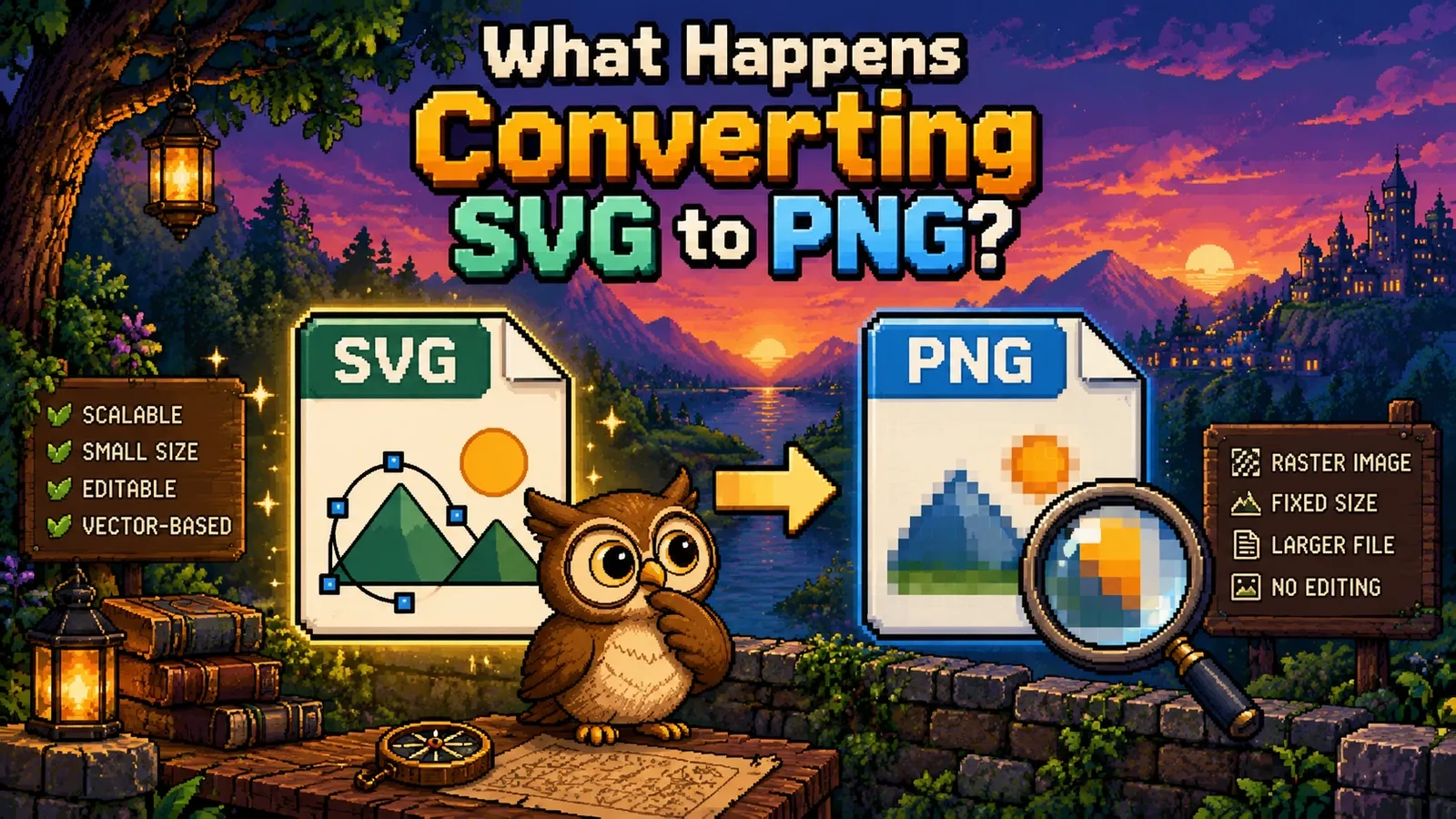
Converting an SVG to PNG sounds like it should be a single, obvious operation. It is not, because an SVG does not contain pixels — it contains instructions for drawing something, and the moment you ask for a PNG you are asking three questions that the file may not answer: how big, in what font, and with what allowed to run.
Every converter answers those three questions. Most do not tell you how. Here is what actually happens, measured in current Chrome, Firefox and Safari.
Question one: how big is an SVG?#
Ask a browser how big an SVG is and it will confidently tell you something wrong.
We tested this across Chromium 149, Firefox 151 and WebKit 26.5, with three files:
| The SVG declares | What the browser reports |
|---|---|
width="120" height="60" | 120 x 60 |
viewBox="0 0 200 50", no width or height | 300 x 75 |
| nothing at all | 300 x 150 |
All three engines agree, and the second and third rows are the problem. 300 x 150 is a CSS default for elements with no intrinsic size — the same default a missing <img> gets. When a viewBox is present the browser keeps that default 300px width and works the height out from the aspect ratio.
So an icon its designer drew at 200 x 50 comes out as a 300 x 75 PNG, and nothing anywhere tells you a default was substituted for your artwork's real size.
The rule that actually works#
Read the file, not the DOM:
- If
widthandheightare both present in absolute units — unitless,px,pt,mm,in— those are the real size. Convert at 96 dpi, so1inis 96 pixels. - Otherwise, if there is a
viewBox, use its width and height. This is the author's own coordinate system. It is also the case that matters most, becausewidth="100%" height="100%"with aviewBoxis what Illustrator and Figma produce by default. - Otherwise there is genuinely no size in the file. Something has to be picked, and the honest thing is to say so rather than silently inventing 300 x 150.
Our SVG to PNG converter tells you which of those three happened for every file you drop on it, and falls back to 512 x 512 in the third case rather than to the browser's non-square default.
Question two: what happened to my fonts?#
Text in an SVG is not a picture of text. It is a string, plus the name of a font that is expected to exist somewhere else. An SVG saying font-family="Brandon Grotesque" contains none of Brandon Grotesque.
You might expect a @font-face rule inside the SVG to fix that. It does not. We tested an SVG with a remote webfont in all three browsers, watching the network: zero requests were made for the font, in every engine. The text still rendered — in a fallback face, at a different width.
That is the whole mechanism behind "why does my text look wrong after converting". Only two kinds of text survive intact:
- Fonts installed on the machine doing the conversion. Which means your PNG can come out differently on your laptop and your colleague's.
- Text already converted to outlines. In Illustrator that is Type > Create Outlines; in Figma, Flatten. Once each letter is a path, there is no font to be missing.
If the text matters, outline it before you export. It is the only reliable answer, and it is worth knowing that this is a property of the format rather than a shortcoming of any particular converter.
Question three: what is allowed to run?#
SVG is not an image format in the way PNG is an image format. It is an XML document, and XML documents can contain scripts. An SVG can carry <script> tags, onload handlers, references to remote images, and @import rules pulling in external stylesheets.
This is why some content management systems refuse SVG uploads outright.
The good news, which we also measured: rendering an SVG through an <img> tag rather than injecting it into the page is a genuine sandbox. With a file carrying an inline <script>, a remote <image href>, an xlink:href, an @import and a remote @font-face, all three browsers ran no script and made no network request at all — confirmed both from inside the page and from outside it.
So a converter that renders your SVG this way cannot be made to execute anything. Ours reports what it found anyway, because being told your logo contained a tracking pixel is more useful than having it quietly dropped.
The one thing that still paints is a data: URI — an image embedded directly in the SVG as text. That is by design: it is self-contained, so there is nothing to fetch.
Where this actually bites#
Not in the conversion. It bites when you take SVG source and paste it into your own page, inline, where none of those protections apply. If you are doing that — with an icon set, or with output from an optimizer — the file needs cleaning first. That is why our SVG optimizer sanitizes on every run whether you ask it to or not: it hands you source code, and source code goes into a DOM.
What none of this changes#
Two things survive conversion exactly, and are worth knowing so you do not go looking for problems that are not there.
Transparency. PNG carries a full alpha channel, so anywhere your SVG paints nothing stays genuinely transparent, and semi-transparent fills keep their partial opacity. Verified pixel-by-pixel in all three engines.
Sharpness at any size you ask for. This is the actual advantage of starting from vector. A 2x export is not a doubled image — the drawing is re-rendered from the geometry at the larger size, so curves stay mathematically sharp. It is why exporting at 2x beats enlarging the PNG afterwards, and why a 16px icon rendered from vector beats one downscaled from 512px.
That last one is measurable. On a mark with grid-aligned edges, drawing directly at 16 x 16 produced 141 solid pixels and no half-transparent ones; downscaling the same artwork from a 512px render gave 98 solid pixels and 64 blurred ones. Forty per cent of the ink turned to mush — which is why our favicon generator renders every size separately instead of shrinking one big one.
The short version#
- Size: parse
width/height, fall back to theviewBox, and never trust what the browser reports. - Fonts: they do not travel. Outline your text before exporting if it matters.
- Scripts: they cannot run during conversion, but they can once you paste SVG source into a page.
- Transparency and sharpness: both survive. Export at the size you need rather than resizing afterwards.
Try the tools
Free, private, and instant. Everything runs in your browser.