How to Merge PDF Files Online (Free, No Signup)
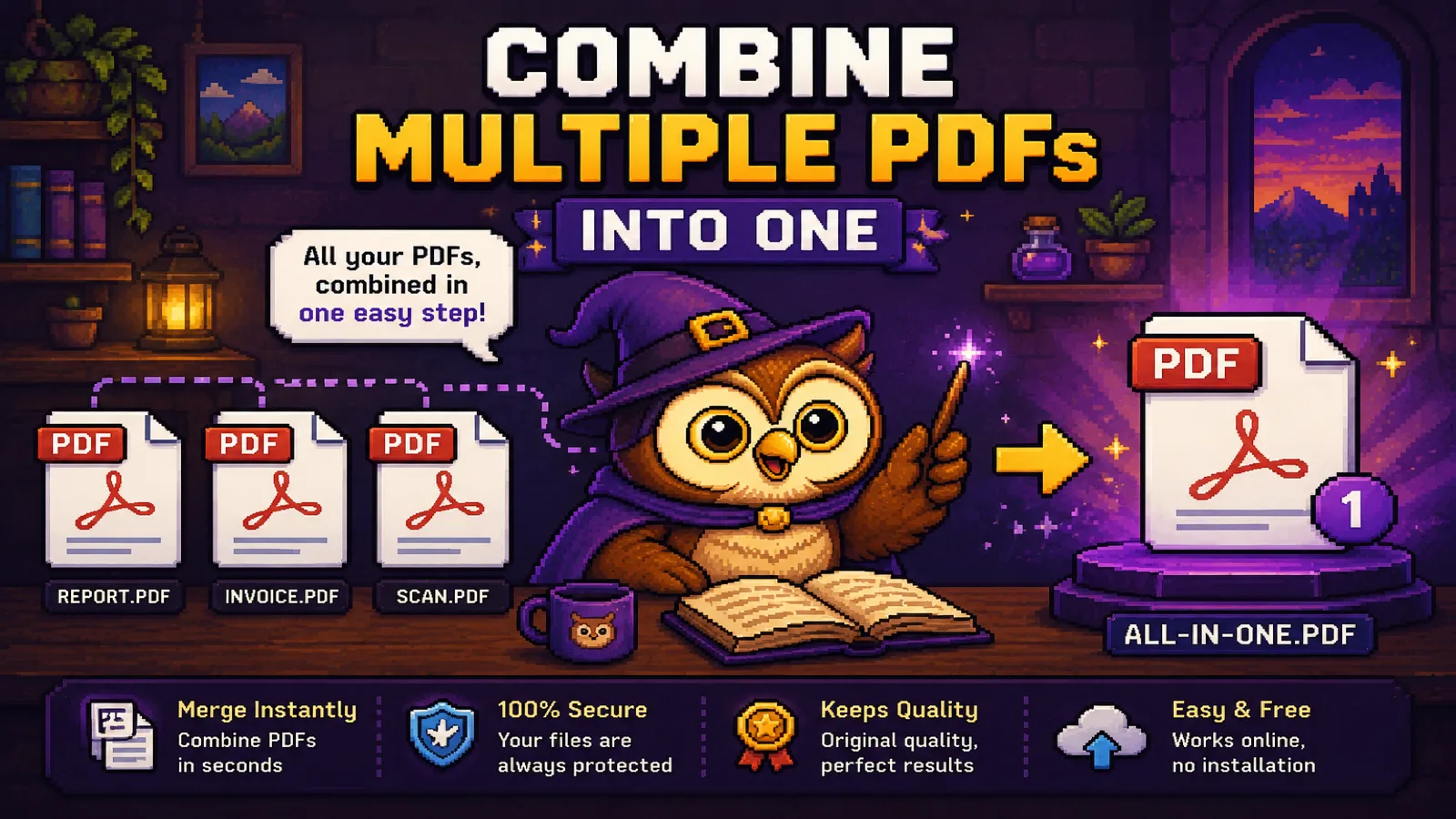
Merge PDF files online in seconds: no signup, no upload, no watermark. Drag your files in, set the order, and download one combined PDF.
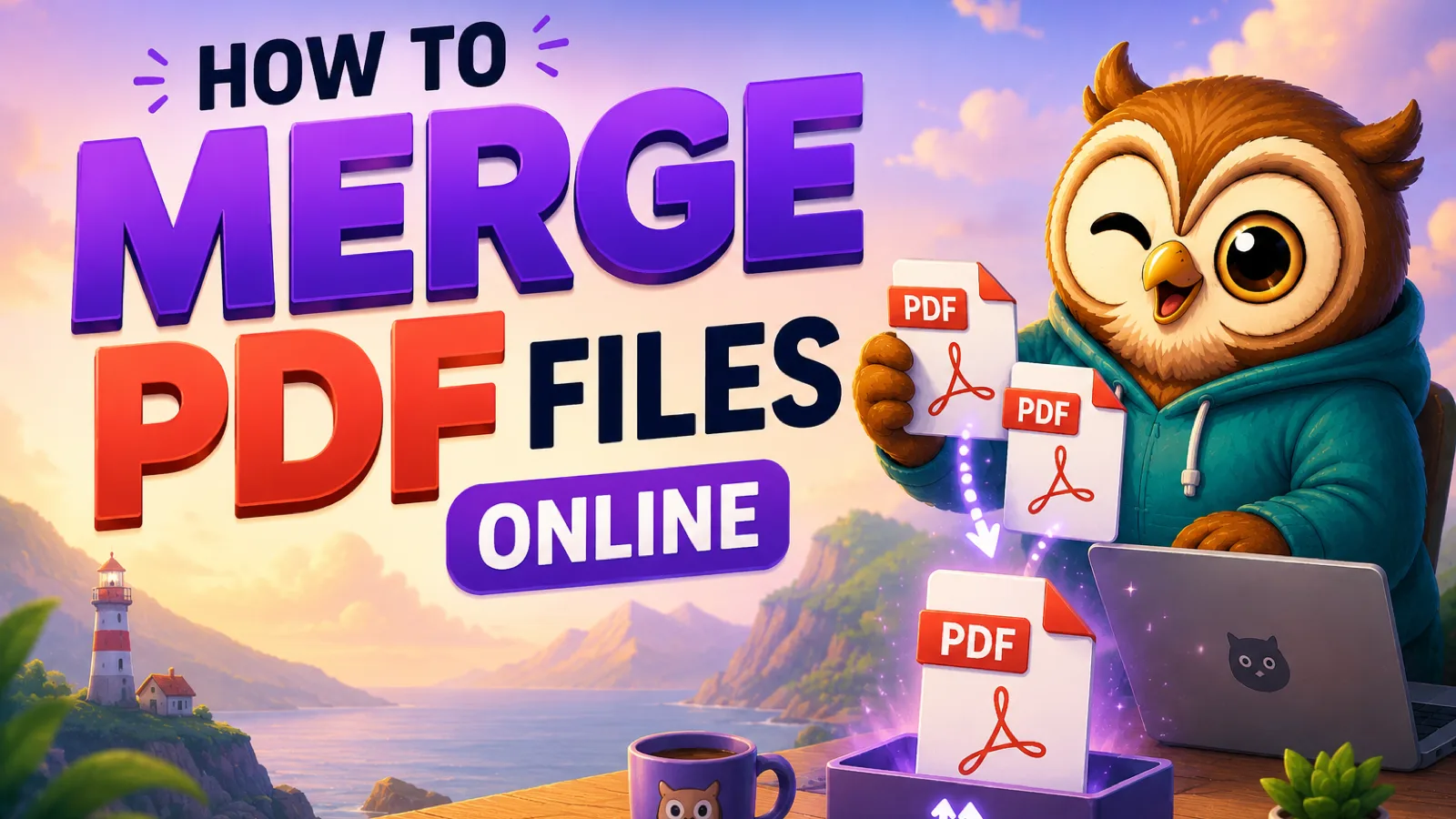
You've got two or three separate PDFs and you need them to arrive as one file. The usual next step is a search for "merge pdf online," and the usual result is a page that asks you to create an account, watches you upload your files to a server, then slaps a watermark on the download unless you pay. None of that is necessary. Our Merge PDF tool does the whole job in your browser, no account and no upload, and it's done in about the time it takes to drag two files onto a page.
This guide walks through the actual steps, plus what to check for in any "free" online merger before you trust it with a file.
What "online" should mean for a PDF tool#
Most tools that call themselves "online" work the same way: you upload your file to their server, a program on their end merges it, and you download the result. That's a real upload, a real wait, and a real copy of your document sitting on someone else's infrastructure, if only briefly. For a school handout that's a non-issue. For a signed lease, a medical form, or anything with a Social Security number on it, it's worth pausing on.
ConvertOwl's merger works differently: the combining happens with WebAssembly running locally in your browser tab. Your PDFs never leave your device, there's no server round-trip to wait on, and nothing is stored anywhere once you close the tab. "Online" here just means "runs in a web page," not "gets uploaded."
Step 1: Open the Merge PDF tool#
Go to convertowl.com/merge-pdf. There's nothing to install and nothing to sign up for. The page loads the merging engine only when you actually add a file, which keeps the page itself fast.
Step 2: Add your PDF files#
Drag all the files you want combined onto the page, or click to browse and select them at once. You can add two files or twenty; there's no artificial cap on how many you combine in one pass, only the practical limit of your device's memory for very large batches.
Step 3: Put them in the right order#
Each file appears as a thumbnail you can drag to reorder. The final PDF follows this list top to bottom, so if you need the cover letter before the resume, drag the cover letter to the top. If you need to reorder or drop individual pages within a file rather than whole documents, the Reorder PDF Pages tool handles that at the page level after merging.
Step 4: Merge and download#
Click merge. Because everything runs locally, this finishes in a second or two even for files with a few hundred pages combined, there's no upload progress bar to watch. Download the single combined PDF, which keeps the original text, fonts, and image quality of every source file. Nothing is re-compressed or flattened in the process.
Signs a "free" merger isn't actually free#
Before you hand a document to any merging site, a few red flags are worth checking for:
- A forced account or email capture before you can download. A tool that needs your identity to combine two files is collecting something other than convenience.
- A watermark on the output unless you pay, common on tools that advertise "free" and mean "free trial."
- A file size or page-count cap that only shows up after you've already uploaded and waited. ConvertOwl doesn't impose an artificial cap: the limit is simply what your browser can hold in memory.
- No stated retention policy. If a site doesn't say what happens to your file after processing, assume it's kept until they say otherwise.
None of these apply when the merge never leaves your browser in the first place, which is the actual fix, not just a policy promise.
What merging doesn't change#
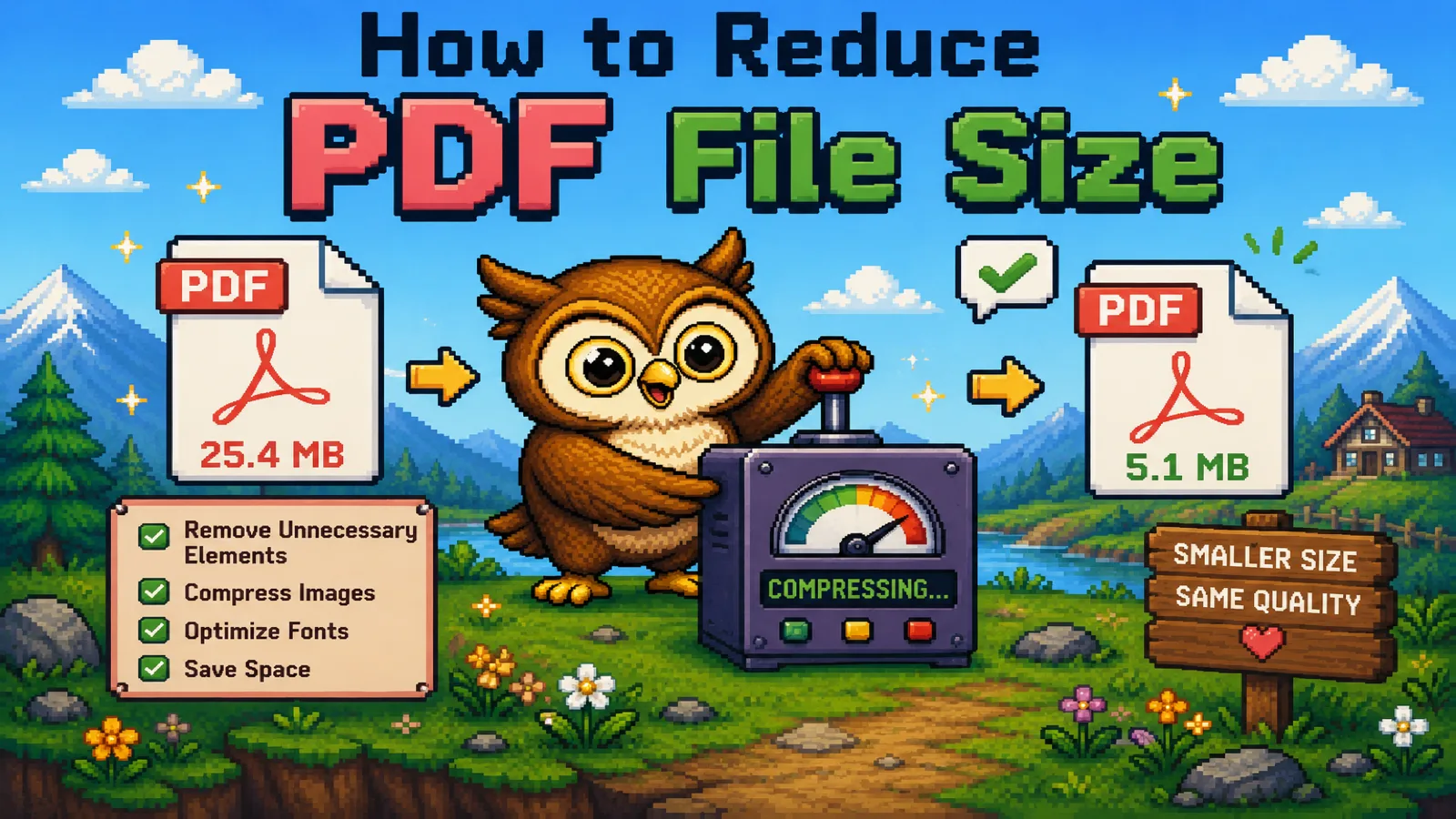
A merged PDF keeps the exact contents of its source files: same text, same embedded fonts, same image resolution. Merging is pure assembly, not re-encoding, so it won't shrink an oversized file. If your combined PDF is too big to email afterward, run it through Compress PDF next; that's a separate step because merging and compressing solve different problems. And if you only need part of a large source document, Split PDF pulls out the pages you actually want before you merge them into the final file.
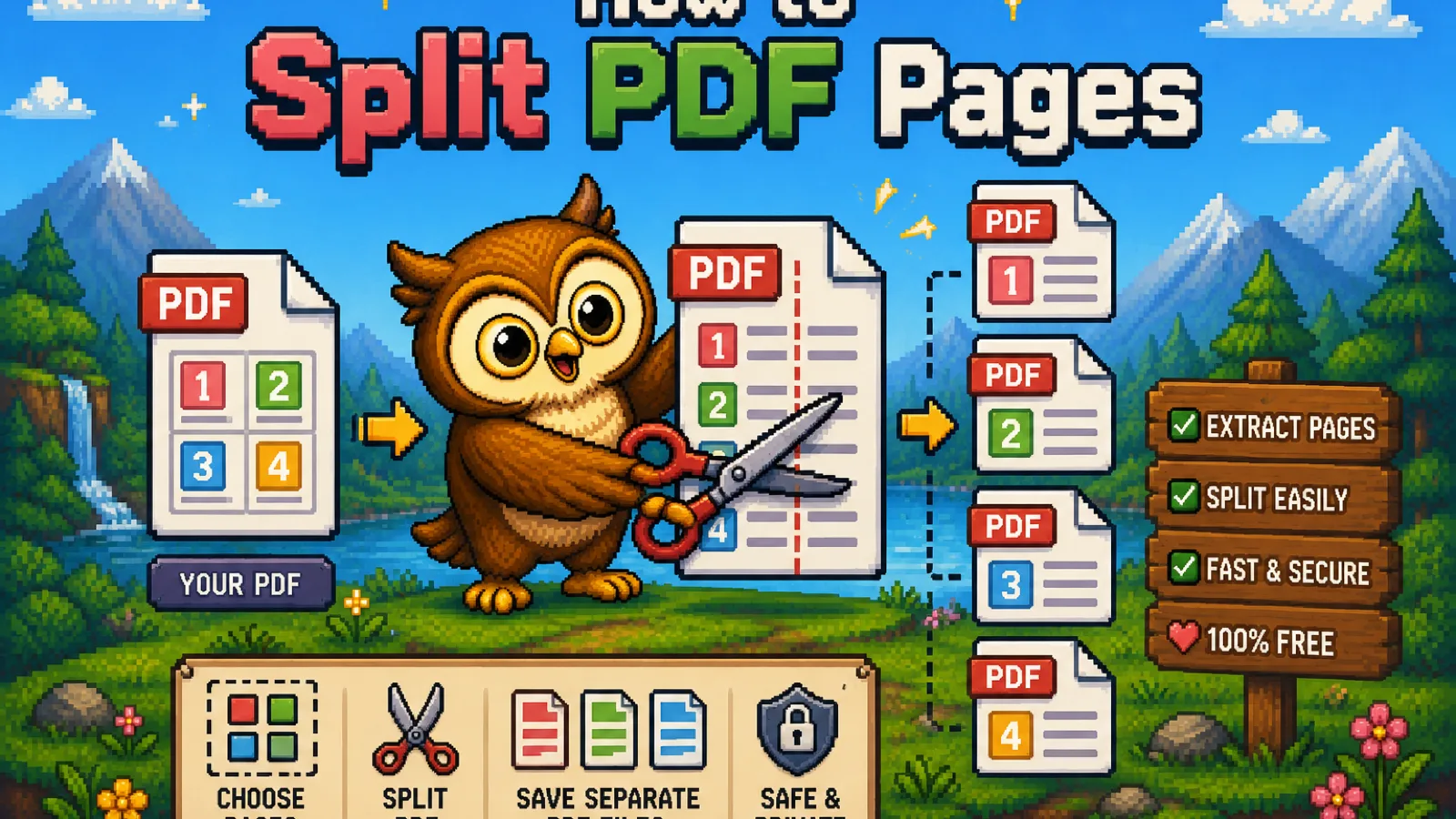
For document-specific workflows like stitching a résumé packet together or combining scanned pages, our guide on combining multiple PDFs into one file covers the common real-world cases in more depth. For the reverse job, splitting one PDF apart into separate files, see how to split PDF pages.
FAQs#
Is it safe to merge confidential PDFs online? It's safe when the merging happens locally in your browser rather than on a remote server, which is how ConvertOwl's Merge PDF tool works: your files are never uploaded, so there's nothing sitting on a third-party server to worry about.
Do I need to install anything to merge PDFs? No, merging PDFs online through a browser-based tool requires no software installation; the entire process, from adding files to downloading the result, happens in the browser tab.
Will merging lower the quality of my PDF? No, merging combines the original files as-is without re-encoding text or images, so quality, fonts, and resolution stay identical to the source files.
Can I merge PDFs on a phone? Yes, since the tool runs in any modern mobile browser the same way it runs on desktop, without needing a dedicated app.
Is there a limit to how many PDFs I can merge at once? ConvertOwl doesn't set an artificial file-count limit; the practical ceiling is how much your device's memory can hold for very large batches, and typical use cases of two to twenty files merge instantly.
What's the difference between merging and combining PDFs? They describe the same result, one PDF made from several source files; "merge" and "combine" are used interchangeably across PDF tools, including here.
Ready to combine your files? Open the free Merge PDF tool, drop your PDFs in, and download one file: no signup, no upload, no watermark.
Try the tools
Free, private, and instant. Everything runs in your browser.