How to Combine Multiple PDFs into One File
Merge several PDFs into a single file free in your browser: no upload, no watermark. Reorder documents and pages before you download.
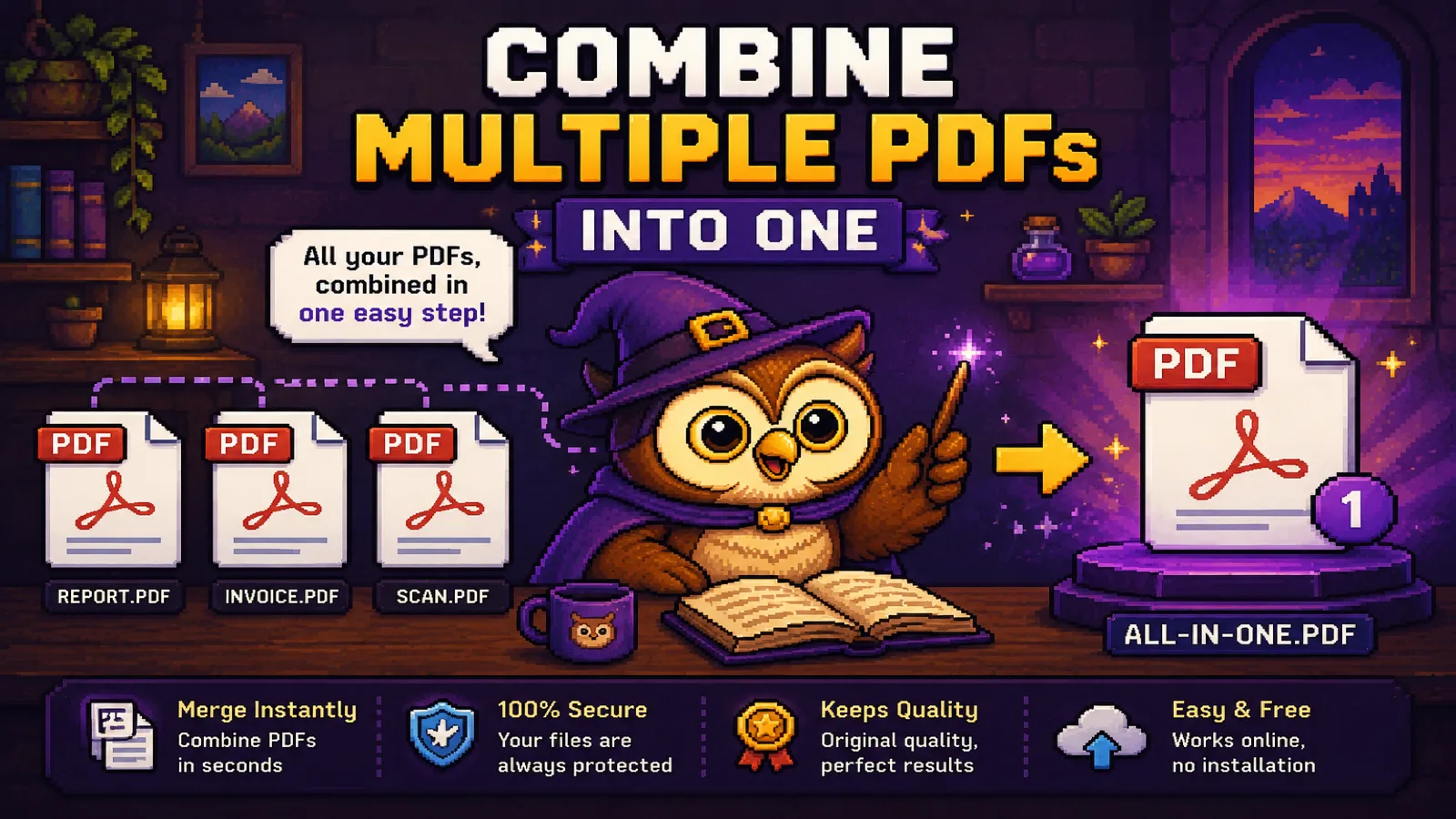
You've got a contract, a signed cover sheet, and a scanned ID, and the recipient wants "one PDF, please." Or you're stitching together five chapters of a report before sending it up the chain. Whatever the reason, combining PDFs into a single file is one of the most common small annoyances in a normal workday, and it takes about ten seconds with our Merge PDF tool, with nothing uploaded anywhere.
This guide covers how to combine PDFs step by step, how to control the order (of both documents and pages within them), and what to expect from the result.
Why you'd combine PDFs in the first place#
A few situations come up again and again:
- Application packets. A resume, a cover letter, and references need to arrive as one attachment instead of three.
- Scanned paperwork. Multiple single-page scans (an ID front, an ID back, a signature page) need to become one document.
- Reports and chapters. Sections written or exported separately need to read as a single, continuously numbered file.
- Invoices and receipts. A batch of individual receipts needs to become one PDF for an expense report.
In every case, the goal is the same: one file, in a specific order, that opens cleanly for whoever receives it.
Step 1: Open the Merge PDF tool#
Go to convertowl.com/merge-pdf. There's nothing to install and no account to create. The merge happens entirely inside your browser, so your documents are never uploaded to a server, which matters if you're combining anything private like a signed contract or a scanned ID. Each file can be up to 100 MB, and there's no fixed cap on how many you add.
Step 2: Add your PDF files#
Drag two or more PDFs onto the drop area, or click to browse for them. Because there's no upload step, the files are ready to arrange the moment they're read, rather than waiting on a progress bar.
Step 3: Arrange the order#
Drag any document by its handle to change where it lands in the final file, or use the up/down arrows if you'd rather not drag. A number badge on each file shows its position, so you can confirm the sequence at a glance before merging. If you need finer control, click "Pages" on any document to expand a thumbnail view and drag individual pages into a new order inside that file, useful when one of your source PDFs has a page or two out of sequence. The reorder pages tool does the same thing as a standalone step, if you'd rather fix one document before combining it with others.
Step 4: Merge and download#
Click Merge PDFs. Your browser assembles the combined file locally and offers it for immediate download. Pages copy over exactly as they are: text stays selectable, images keep their original resolution, and nothing gets re-encoded or recompressed in the process.
What happens to the content during a merge#
Merging is a copy-and-concatenate operation, not a re-render. That distinction matters for what survives:
- Text and images: copied byte-for-byte, so there's no quality loss anywhere in the result.
- Page-level links and formatting: preserved, since each page is carried over as-is.
- Document-level features like global bookmarks or interactive form fields may not carry across cleanly, since the tool focuses on faithfully combining the visible pages rather than merging every internal PDF structure.
If your merged file needs trimming afterward, for example you combined five documents but only need pages from three of them, the Split PDF tool can pull out exactly the pages you want from the result.
Combining large or many-page PDFs#
If the files you're merging are already large (scanned documents especially), the combined output inherits that size. Two options if the merged file ends up too big to email or upload elsewhere:
- Compress it after merging. Our Compress PDF tool re-encodes embedded images to shrink the file while keeping text crisp, often by 50-90% on scan-heavy PDFs. Our guide to compressing a PDF for email covers the exact trade-offs.
- Split it by section instead of sending the whole thing. If the recipient only needs part of the combined document, Split PDF is faster than compressing everything.
Most attachment limits sit around 25 MB for Gmail and 20 MB for Outlook by default, so it's worth checking your merged file's size against the destination before you send it.
FAQs#
How do I combine multiple PDFs into one file for free?#
Use a browser-based tool like ConvertOwl's Merge PDF: drop your files in, drag them into the order you want, and click merge to download a single combined PDF, with no account, no watermark, and no cost.
Is it safe to merge confidential PDFs online?#
Yes, as long as the tool processes files locally in your browser rather than uploading them to a server; ConvertOwl's merge tool never sends your documents anywhere, so contracts, IDs, and financial statements stay entirely on your device.
Can I change the order of the PDFs before merging?#
Yes, drag any document by its handle to reposition it, or use the up/down arrows; a number badge on each file confirms its final position in the merged output before you click merge.
Will merging PDFs reduce the quality of my pages?#
No, merging copies each page exactly as it is, so text remains selectable and images keep their original resolution with no recompression happening at any point.
Is there a limit to how many PDFs I can combine?#
There's no fixed cap on file count; the practical limit is your device's available memory, since everything is held in the browser during merging, and combining dozens of typical documents works smoothly.
Can I merge a password-protected PDF?#
Not directly. An encrypted PDF needs to be unlocked first with a tool like Unlock PDF using the correct password, and the unprotected copy can then be merged like any other file.
The short version#
- Combining PDFs is a copy-and-concatenate job: drag files into order, merge, and the pages arrive with no quality loss.
- A browser-based merge tool never uploads your documents, which matters for contracts, IDs, and anything private.
- If the combined file comes out too large, compress it afterward, or split it down to just the pages someone actually needs.
Ready to combine your files? Open the free Merge PDF tool, drop your documents, arrange the order, and download: no upload, no watermark, no account.
Try the tools
Free, private, and instant. Everything runs in your browser.