How to Split PDF Pages Into Separate Files
Split a PDF into separate pages or sections free in your browser: no upload, no watermark. Pull out exactly the pages you need in seconds.
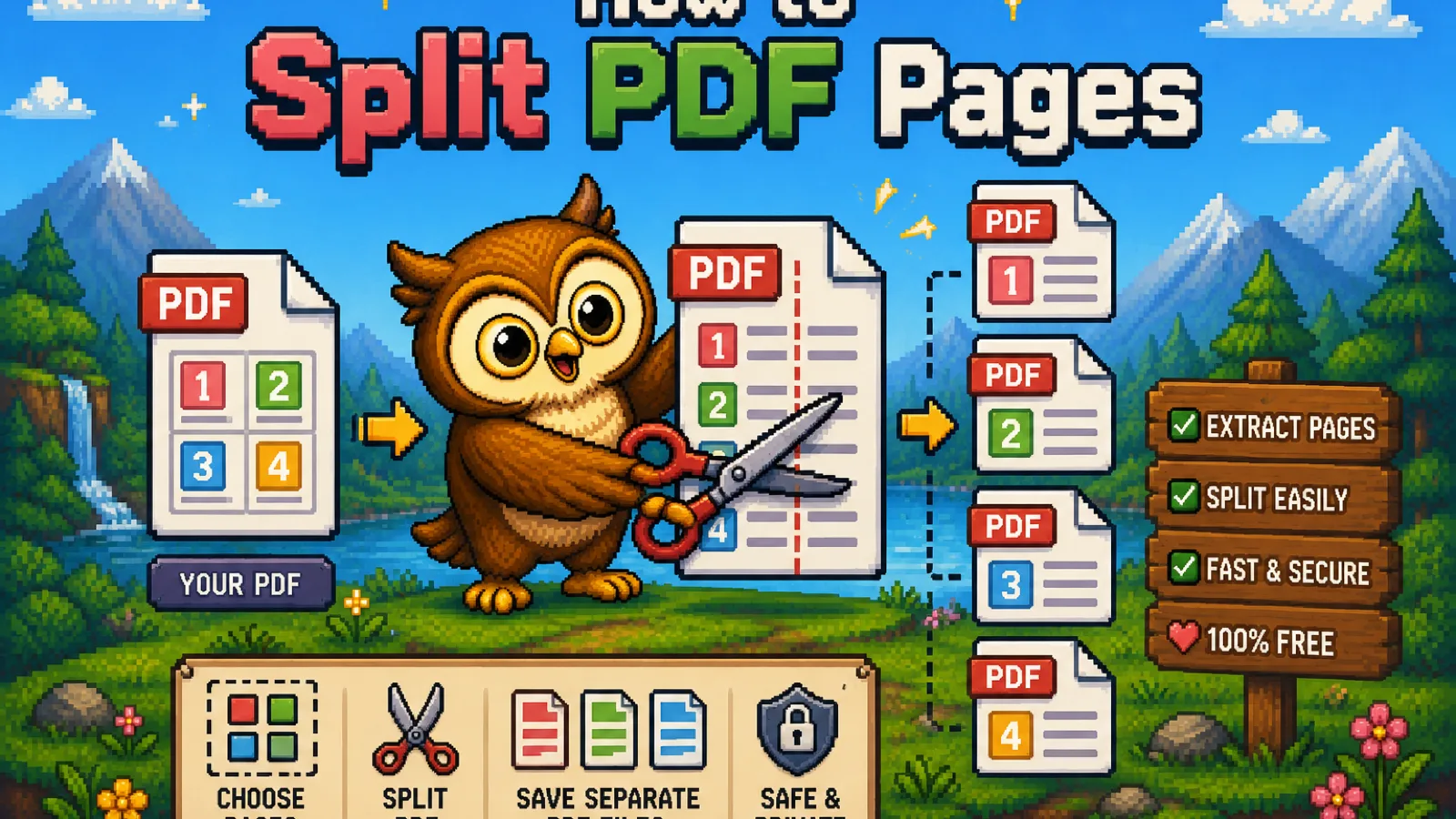
You've got a 40-page contract and only need to send someone pages 12 through 15. Or a scanned packet came through as one giant PDF and you need each form as its own file. Splitting a PDF, pulling specific pages out into a new document, is one of those small tasks that feels like it should take one click, and with our Split PDF tool it basically does: pick your pages, split, download, with nothing uploaded anywhere.
This guide covers how to split a PDF step by step, the different ways to choose which pages go where, and what to do afterward if you need to put pages back together differently.
Why you'd split a PDF in the first place#
A few situations come up constantly:
- Sending part of a document. Someone needs pages 3-5 of a 50-page manual, not the whole thing.
- Breaking apart a scanned batch. A scanner or phone app often saves multiple forms as one long PDF; splitting turns each form back into its own file.
- Extracting a single page. Pulling out just a signature page, an ID photo, or a certificate to send or archive separately.
- Trimming a merged file. You combined several PDFs into one and now need to peel a section back off.
In every case, the goal is the same: fewer pages per file, without touching the quality or formatting of what's inside them.
Step 1: Open the Split PDF tool#
Go to convertowl.com/split-pdf. There's nothing to install and no account to create. The split happens entirely inside your browser, so your document is never uploaded to a server, which matters if you're working with a signed contract, a medical record, or anything else you'd rather not hand to a third party. Files up to 100 MB are supported.
Step 2: Add your PDF#
Drag the file onto the drop area or click to browse. Because there's no upload step, a thumbnail preview of every page appears almost instantly, so you can see exactly what you're working with before you decide how to split it.
Step 3: Choose how to split it#
You've got a few options, depending on what you actually need:
- Extract a page range. Type a range like
12-15to pull out just those pages as one new file. - Split into individual pages. Turn every page into its own single-page PDF, useful for a scanned batch of separate forms.
- Split at specific points. Mark where one document ends and the next begins if a single scan actually contains several distinct documents back to back.
Click on any thumbnail to select or deselect it directly if you'd rather build your output page by page instead of typing a range.
Step 4: Split and download#
Click Split PDF. Your browser generates the new file (or files, if you chose individual pages) locally and offers them for immediate download, packaged as a ZIP if there's more than one. Every page copies over exactly as it was: text stays selectable, images keep their original resolution, and nothing gets re-encoded in the process.
What happens to the pages during a split#
Splitting is a copy operation, not a re-render, so nothing about the page content changes:
- Text and images: copied byte-for-byte, with zero quality loss in either direction.
- Page-level formatting: preserved exactly, since each page is carried over as-is rather than rebuilt.
- Page order: kept intact within each output file, matching the order the pages appeared in the original.
If you picked the wrong range or need a different cut, there's no risk to the source file. It's read locally in your browser and never modified, so you can just re-select and split again.
Splitting vs. deleting pages#
Splitting and deleting solve opposite sides of the same problem, and it's worth knowing which one you actually want:
- Splitting keeps every page, just separated into multiple files. Use it when you need both halves, or a specific range as its own document.
- Deleting removes pages permanently and keeps everything else in one file. If you just want to drop a blank cover sheet or a duplicate page from an otherwise-fine document, Delete PDF Pages is faster than splitting and reassembling.
If your end goal is actually the opposite of splitting, taking several files (or split-out pages) and putting them back into one document, the Merge PDF tool does that in the same no-upload way. Our guide to combining multiple PDFs walks through reordering documents before merging them.
What if the split-out file is still too big?#
Pulling four pages out of a 40-page scan usually solves a size problem on its own, but a page-heavy range can still be large if it's full of high-resolution images. If your split file is over your recipient's attachment limit (25 MB on Gmail, 20 MB on Outlook by default), running it through Compress PDF afterward can shrink it further without touching the text.
FAQs#
How do I split a PDF into separate files for free?#
Use a browser-based tool like ConvertOwl's Split PDF: upload your file, choose a page range or split every page individually, and download the result, with no account, no watermark, and no cost.
Is it safe to split a confidential PDF online?#
Yes, as long as the tool processes the file locally in your browser instead of uploading it to a server; ConvertOwl's split tool never sends your document anywhere, so contracts, IDs, and medical forms stay entirely on your device.
Can I extract just one page from a PDF?#
Yes, either type that single page number as your range (like 7-7) or click on just that page's thumbnail to select it, then split to download it as its own one-page file.
Does splitting a PDF reduce quality?#
No, splitting copies each page exactly as it is, so text remains selectable and images keep their original resolution, since nothing is rasterized or recompressed during the process.
What's the difference between splitting and deleting pages?#
Splitting produces multiple output files while keeping every page somewhere; deleting permanently removes specific pages and keeps the rest as a single file, so pick deleting if you just want to drop one unwanted page.
Can I split a password-protected PDF?#
Not directly. An encrypted PDF needs to be unlocked first with a tool like Unlock PDF using the correct password, and the unprotected copy can then be split like any other file.
The short version#
- Splitting a PDF is a copy operation: choose a page range or split every page individually, and the output keeps full quality with no re-encoding.
- A browser-based split tool never uploads your document, which matters for contracts, scans, and anything private.
- Need to remove a page instead of extracting one? Delete PDF Pages is the faster tool. Need to put pages back together? Merge PDF handles that.
Ready to split your file? Open the free Split PDF tool, drop your document, pick your pages, and download: no upload, no watermark, no account.
Try the tools
Free, private, and instant. Everything runs in your browser.