How to Convert AVIF to PNG (Free, No Upload)
Convert AVIF images to PNG for free in your browser. Why AVIF files won't open everywhere, and how to fix it in a couple of clicks.
You downloaded an image, or a designer sent you one, and it has a .avif extension. Windows Photos won't open it. It won't paste into an old version of Photoshop or into a Word document. That's not a broken file: AVIF is a newer image format, and a lot of everyday software simply hasn't caught up to it yet. The fix is to convert it to PNG, a format literally everything can read, and you can do it free with our AVIF to PNG tool, entirely in your browser.
Here's what AVIF actually is, why it doesn't open everywhere, and how to convert it in under a minute. (For more browser-based fixes like this one, see our other how-to guides.)
What is an AVIF file, and why doesn't it just open?#
AVIF (AV1 Image File Format) stores pictures using the AV1 video codec, which is why it compresses so well: an AVIF can look as good as a JPEG at a fraction of the file size. Browsers like Chrome, Firefox, and Safari have supported it for a few years now (see MDN's image format support table for the current state), so AVIF shows up constantly on modern websites.
The problem is everything outside the browser: older operating systems, older image editors, most PDF and document tools, and plenty of mobile apps don't decode AVIF yet. That's the gap PNG fills: it's been the universal, lossless image format since the 1990s, and nothing rejects it.
Step 1: Open the AVIF to PNG tool#
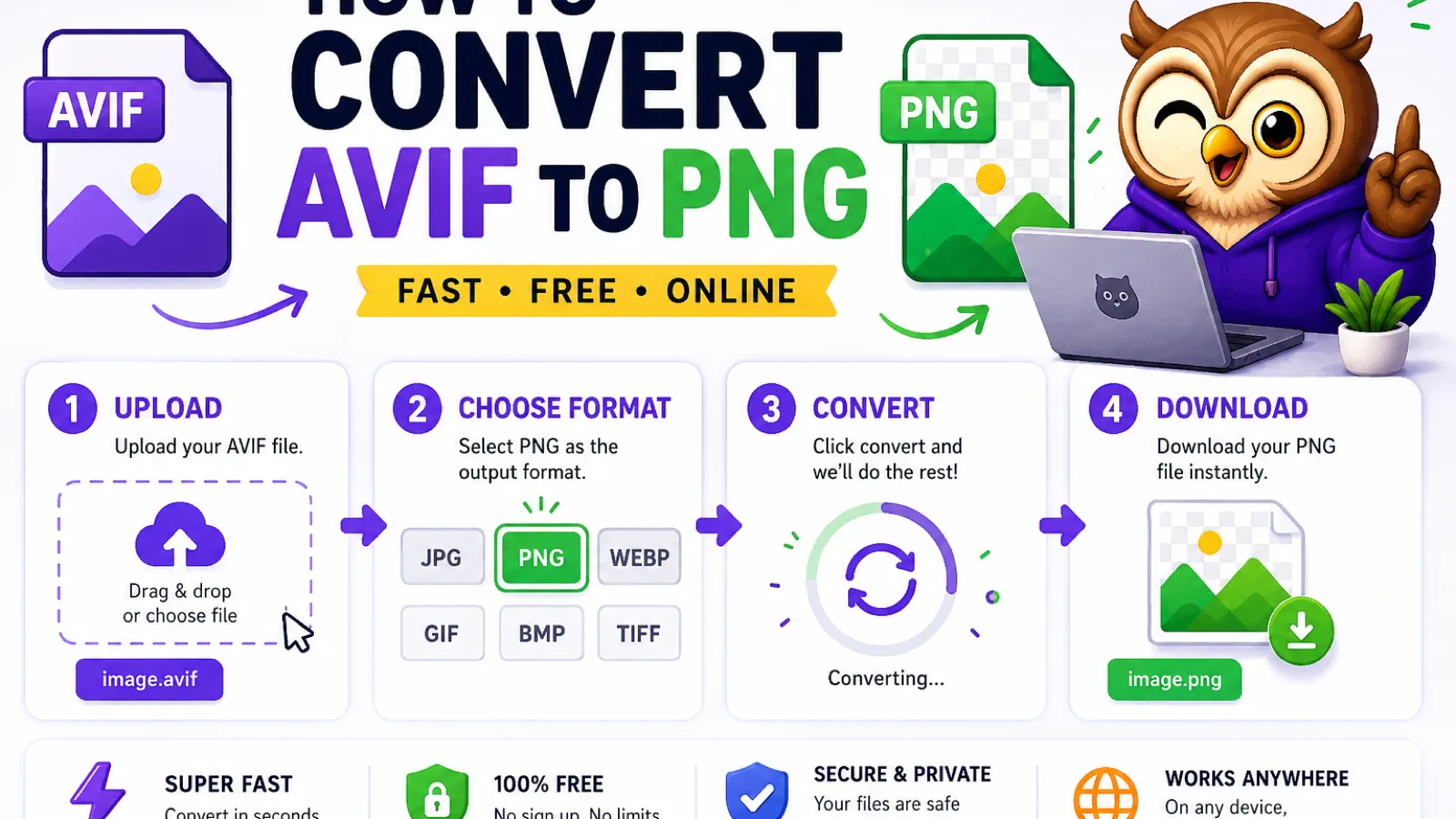
Go to convertowl.com/avif-to-png. No sign-up, nothing to install. The conversion happens locally using your browser's own image decoding, so the AVIF file is never uploaded anywhere, which is useful if the image is a client design file or anything you'd rather not send to a third-party server. Files up to 50 MB are supported.
Step 2: Drop in your AVIF file (or a batch of them)#
Drag the .avif file onto the page, or click to browse for it. If you have several to convert (a folder of exported assets, say), you can drop them all in at once; the tool processes each one and gives you a separate PNG per file.
Step 3: Convert and check the preview#
Conversion starts automatically once the file loads. Because PNG is lossless, the pixels are decoded from the AVIF and re-saved exactly, with no quality lost in the process: what you see in the preview is what you get in the download.
Step 4: Download your PNG#
Click download and the file lands in your downloads folder, ready to open in anything: Windows Photos, macOS Preview, Word, PowerPoint, an old copy of Photoshop, an upload form that only accepts "standard" image types. If you were only converting because a specific tool couldn't read AVIF, this is the last step.
A trade-off worth knowing: PNG files are bigger#
Converting AVIF to PNG is a compatibility fix, not an upgrade: expect the file size to go up, sometimes a lot. AVIF's whole advantage is aggressive, modern compression; PNG uses older, lossless compression that simply can't match it. A 200 KB AVIF photo can easily become a 2–3 MB PNG. That's normal, and it's the price of universal compatibility. If the resulting PNG is too large for an email or upload form, run it through Compress Image afterward, and it'll shrink it back down without you having to touch the AVIF again.
Going the other way: PNG to AVIF#
If you're the one producing images (say, optimizing photos for a website), the direction usually flips: you want smaller AVIF files, not bigger PNGs. Our PNG to AVIF tool does that conversion, and it's the same reason AVIF exists in the first place: modern sites use it to cut image weight and load faster, the same logic behind converting HEIC photos from an iPhone to JPG so they're viewable everywhere.
FAQs#
Why won't my AVIF file open on Windows or in Photoshop?#
AVIF is a newer format built on the AV1 video codec, and many desktop apps and older operating systems haven't added support for decoding it yet, even though most modern web browsers have. Converting the file to PNG sidesteps the issue entirely, since PNG is supported by essentially every image tool ever made.
Does converting AVIF to PNG lose image quality?#
No. PNG is a lossless format, so converting from AVIF to PNG preserves every pixel exactly as it was decoded, with no added compression artifacts. The trade-off is file size, not quality: the PNG will typically be larger than the original AVIF.
Why is my PNG file so much bigger than the original AVIF?#
AVIF uses modern, highly efficient compression from the AV1 video codec, while PNG uses older lossless compression that can't shrink an image nearly as much. Going from AVIF to PNG trades a smaller file for universal compatibility, and if the size becomes a problem you can compress the PNG afterward.
Is it safe to convert a private or confidential image this way?#
Yes. The conversion runs entirely inside your browser using your device's own image decoding, so the AVIF file is never uploaded to a server or seen by anyone else. This matters for unreleased designs, personal photos, or anything else you'd rather not hand to a third-party service.
Can I convert multiple AVIF files to PNG at once?#
Yes, the AVIF to PNG tool accepts multiple files in one go and converts each one to its own PNG, which is faster than converting a folder of images one at a time.
What's the difference between AVIF and WebP?#
Both are modern image formats built for smaller file sizes than JPEG or PNG, but AVIF generally compresses tighter thanks to the AV1 codec, while WebP has slightly broader legacy support. For everyday compatibility with software that doesn't read either one, PNG remains the safest fallback.
Ready to convert? Open the free AVIF to PNG tool, drop your file, and get a PNG that opens anywhere: no upload, no watermark, no account.
Try the tools
Free, private, and instant. Everything runs in your browser.