How to Reduce PDF File Size (5 Ways That Actually Work)
Five real ways to make a PDF smaller: compress images, split pages, rescan smarter, and more. Free, in your browser, no upload required.
A PDF that was fine yesterday suddenly won't upload, won't attach, or takes forever to open on a slow connection. "Reduce the file size" sounds like one task, but there isn't one cause, so there isn't one fix. This guide walks through five real ways to shrink a PDF, in order of how often they actually solve the problem, so you pick the right one instead of guessing.
Every method below runs free and directly in your browser using our PDF tools, with nothing uploaded to a server.
Why PDFs get so big#
A PDF is a container, not a single format. Text and vector line art weigh almost nothing; the size almost always comes from embedded images. A phone photo dropped onto a page can be 4-8 MB by itself, and a scanned document is nothing but images: every page is a full-resolution picture of paper, even the blank margins.
That's why two PDFs with the same page count can differ by 10x in size: one is mostly text, the other is mostly pictures.
Way 1: Compress the images inside the PDF#
This is the fix that works for the largest share of "too big" PDFs, because it targets the actual source of the weight.
Step 1: Open the Compress PDF tool#
Go to convertowl.com/compress-pdf. No install, no account. Compression runs entirely in your browser using WebAssembly image codecs, so the file is never uploaded anywhere, which matters for a signed contract or a medical form. Files up to 100 MB are supported.
Step 2: Add your PDF#
Drag it onto the page or click to browse. There's no upload step, so it's ready the instant the file is read.
Step 3: Set the image quality#
Drag the quality slider. Around 60% is the sweet spot for most scans and photo-heavy documents: images soften slightly, but it's hard to notice at normal reading size. Go lower for a rough draft, higher if the images need to stay crisp for print.
Step 4: Check the real number and download#
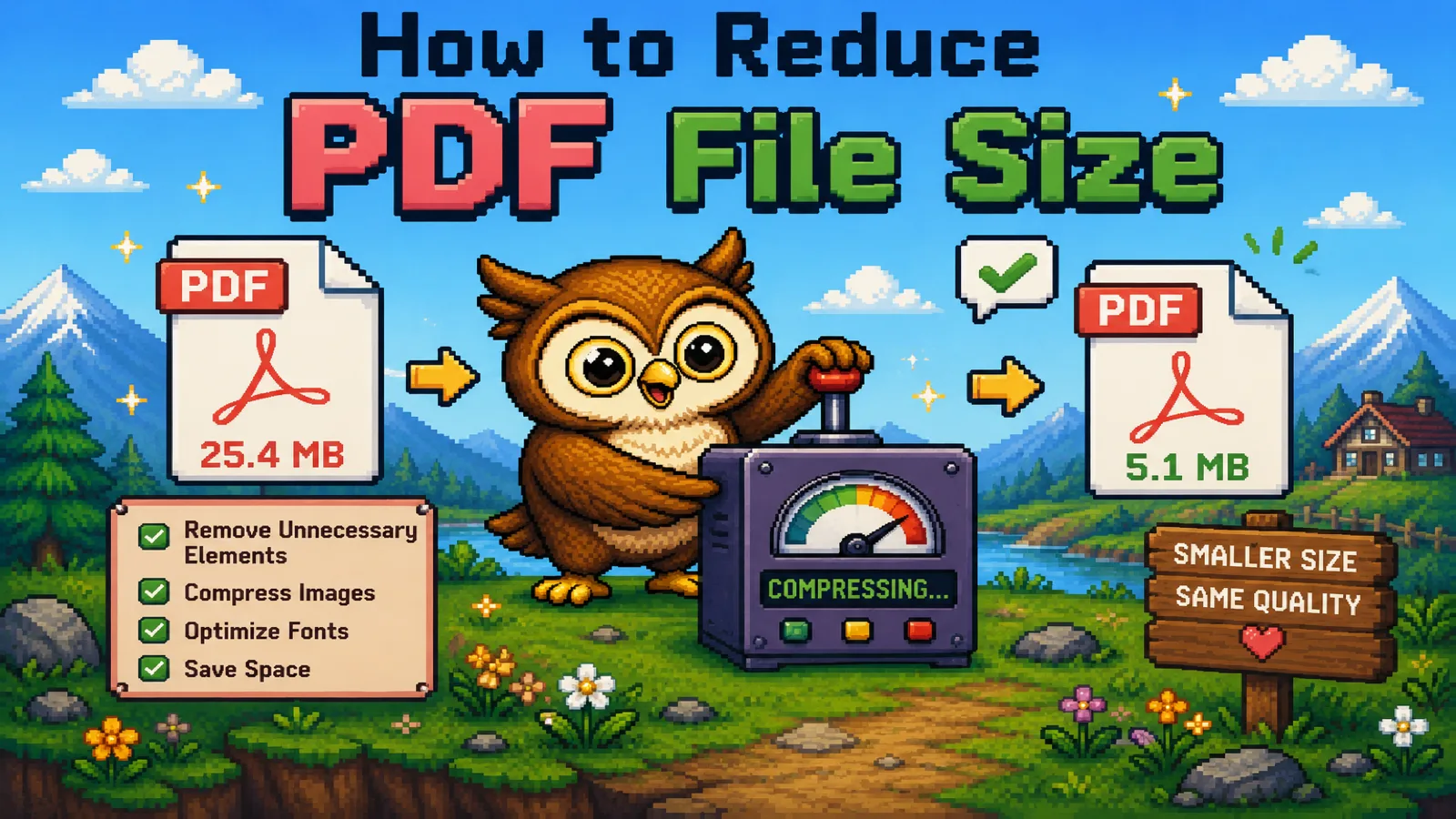
The tool shows the exact before-and-after size, not a promise. A 25 MB scan dropping to 5 MB is typical. A text-heavy file that barely moves just means there wasn't much to compress in the first place, and that's normal too, not a broken tool.
What to expect: scanned or photo-heavy PDFs shrink by 50-90%. Text-only PDFs (a report exported from Word, an invoice) barely move, often just a few percent, because there's almost nothing to re-encode.
Way 2: Split it and send only what's needed#
Sometimes the file isn't dense, it's just long. Compressing a 200-page manual to send three pages is solving the wrong problem.
Use Split PDF to pull out only the pages your recipient actually needs. Type a page range, split, and download, no upload involved. A 3-page extract is smaller than any amount of compression could make the full 200-page file, and the pages arrive at full quality since nothing gets re-encoded.
If you're the one who ends up with a giant merged file, our guide to combining multiple PDFs covers the reverse: putting several files together into one, cleanly, before you compress or split again.
Way 3: Turn pages into images if you only need the visuals#
If the recipient just needs to see a page (dropping it into a slide, a chat, or a report) rather than read it as a document, converting to an image can be smaller and simpler than sending a PDF at all. PDF to JPG turns each page into its own image file, letting you grab just the one or two pages that matter instead of the whole document.
Way 4: Rescan at a lower resolution#
If you're the one creating the scan, the size problem can be prevented before it starts. Most scanning apps default to 300 DPI or higher, which is overkill for a document that will only ever be read on a screen. Dropping to 150-200 DPI at scan time cuts the file size dramatically with no visible loss for anything short of fine print or professional printing. This won't help with a PDF you already have, but it's worth fixing at the source if you scan documents regularly.
Way 5: Remove pages you don't actually need to keep#
Cover sheets, blank pages, and duplicate scans add weight without adding information. If a document has pages you don't need in the final file at all, deleting them (rather than compressing around them) is the cleanest fix, since it removes the weight instead of just re-encoding it.
How small does it actually need to be?#
Most "too big" errors come from a specific limit, not a vague sense that the file is large. A few common ones:
| Where you're sending it | Typical size cap |
|---|---|
| Gmail attachment | 25 MB |
| Outlook attachment (default) | 20 MB |
| Most contact / upload forms | 5-10 MB |
Aim for comfortably under the cap you're actually hitting rather than "as small as possible." Over-compressing a document you need to print or archive trades quality you can't get back for savings you didn't need.
FAQs#
What's the fastest way to reduce a PDF's file size?#
Running the file through a browser-based PDF compressor is fastest for most documents, since it targets the embedded images that cause most of the bulk and finishes in seconds with no upload wait.
Why is my PDF still large after compressing it?#
A PDF that barely shrinks after compression is usually text-only or vector-based, meaning there were few or no images to re-encode in the first place, so the size was never coming from images to begin with.
Does reducing PDF file size lower the quality?#
Only the embedded images are affected, and only if you choose an aggressive quality setting; text stays perfectly sharp and selectable because it's never rasterized during compression.
Can I reduce PDF size without losing any quality at all?#
Yes, if the size problem is too many pages rather than heavy images: splitting out just the pages you need or deleting unnecessary ones removes size with zero quality loss, since no re-encoding happens.
Is it safe to reduce the size of a confidential PDF online?#
Yes, as long as the tool processes the file locally in your browser instead of uploading it to a server; ConvertOwl's PDF tools never send your document anywhere; it stays on your device the entire time.
How much can compression actually shrink a scanned PDF?#
Scanned and photo-heavy PDFs typically shrink by 50-90%, since nearly all of their size comes from full-resolution images that can be re-encoded at a smaller, still-readable quality.
The short version#
- Big PDFs are almost always big because of images, not text, so compression targets those images specifically.
- If the real problem is too many pages, splitting beats compressing, since it removes size with zero quality loss.
- Match your target size to the actual limit you're hitting (25 MB for Gmail, ~10 MB for most forms) instead of chasing "as small as possible."
- Everything above runs free, locally in your browser, with nothing uploaded. Browse more how-to guides for other file-size fixes.
Ready to shrink one? Open the free Compress PDF tool, drop your file, and watch the number drop: no upload, no watermark, no account.
Try the tools
Free, private, and instant. Everything runs in your browser.