Which Video Format Is Best? MP4 vs MOV vs WebM vs MKV
MP4, MOV, WebM, and MKV compared for compatibility, file size, and quality, with a clear answer for which one to actually use.
You've got a video file and it won't play somewhere it should: a phone won't open it, a website rejects the upload, or an editing app throws an error. Nine times out of ten, the culprit is the container format: MP4, MOV, WebM, and MKV all wrap video and audio together differently, and each one made different trade-offs for compatibility, file size, and features. Here's what actually separates them, and which one to pick.
It's a container, not just "the video"#
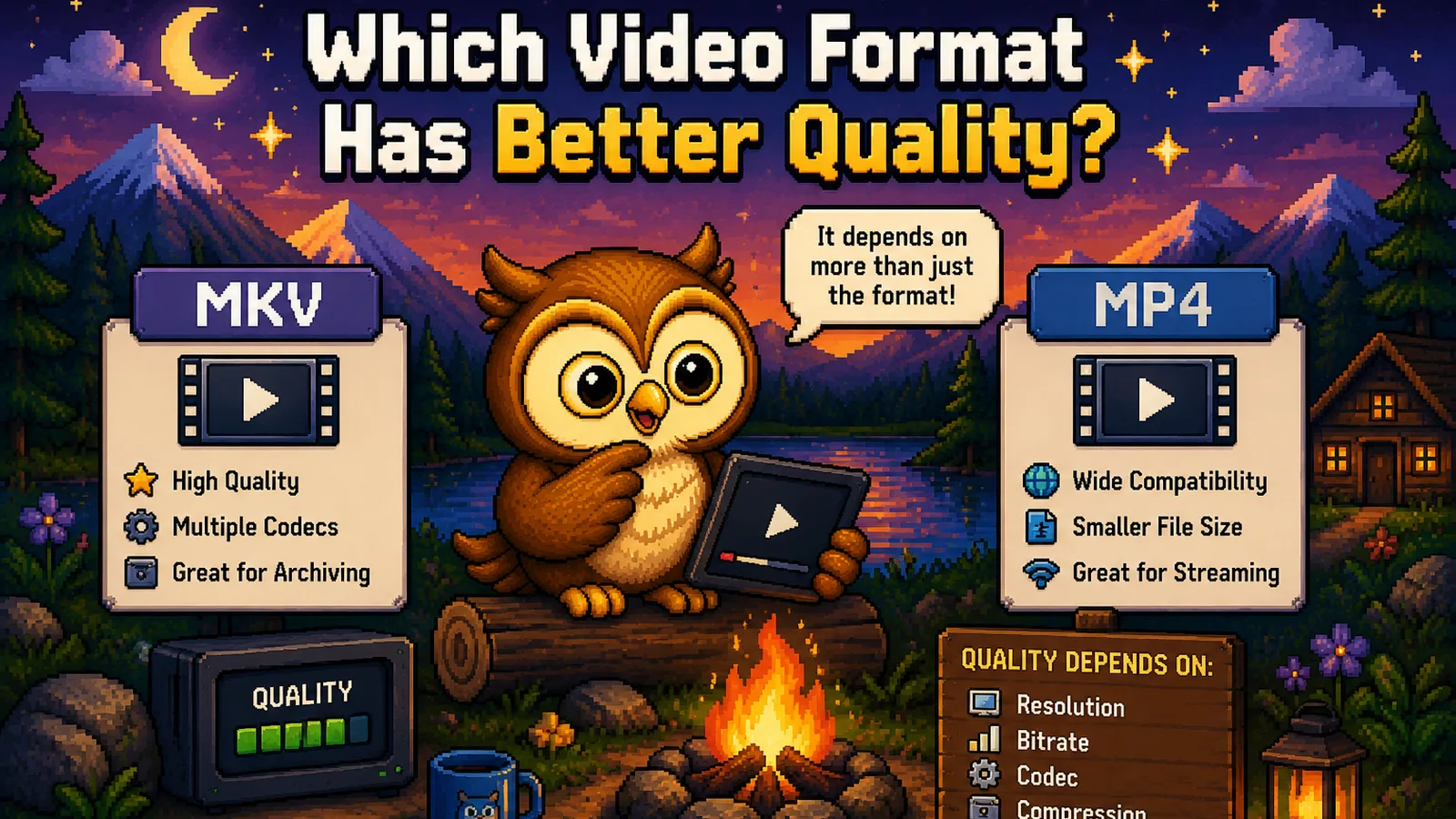
A video file isn't one solid blob: it's a container holding a video stream, an audio stream, subtitles, and metadata, all packaged together. The container decides what the file can hold and where it'll play; the actual video codec inside (H.264, H.265, VP9, AV1) decides quality and compression efficiency. Two MP4 files can use completely different codecs internally, which is why "just convert to MP4" doesn't always fix a playback problem. But it fixes it most of the time, because MP4's container is what nearly everything expects.
MP4: the safe default#
MP4 (MPEG-4 Part 14) is the closest thing video has to a universal format. It plays natively on every phone, every browser, every smart TV, and every social platform without a second thought. It typically wraps H.264 or H.265 video, both of which balance quality and file size well.
- Compatibility: best of the four, by a wide margin.
- File size: small to moderate, depending on codec and bitrate.
- Use it for: sharing, uploading, streaming, archiving. It's the default choice unless you have a specific reason not to.
If you're not sure which format to use, use MP4. If you've received a video in another container and just need it to open reliably, run it through MOV to MP4 or MKV to MP4 and move on.
MOV: Apple's format#
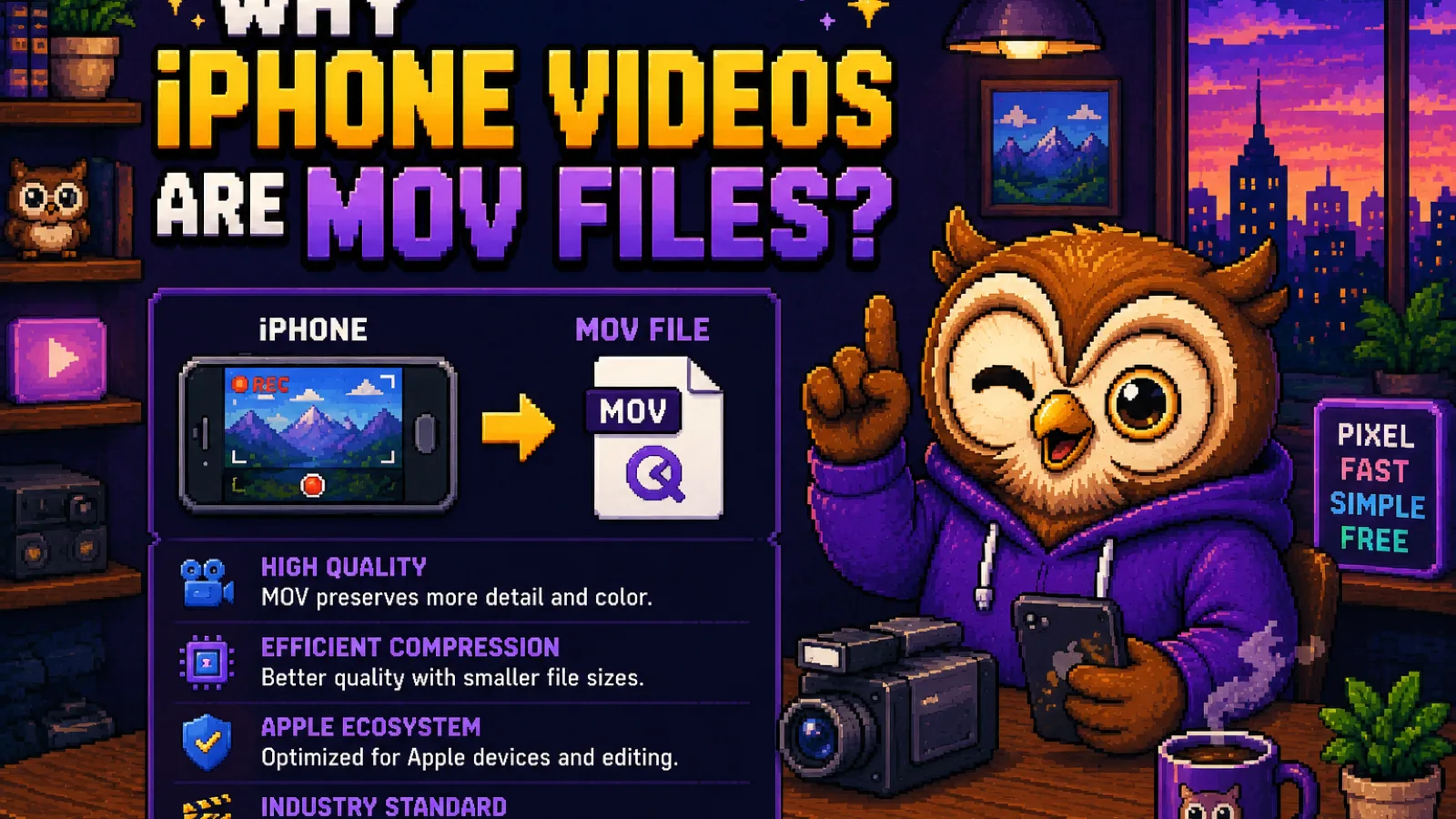
MOV (QuickTime File Format) is Apple's container, and it's what an iPhone records to by default. It's nearly identical to MP4 under the hood, since both are built on the same underlying structure, which is why converting one to the other rarely touches quality at all: it just repackages the streams.
- Compatibility: excellent on Apple devices, spottier on Windows, older Android phones, and some web upload forms.
- File size: similar to MP4 for the same codec, sometimes larger since iPhone recording favors quality over compression.
- Use it for: editing on a Mac, or as your camera's raw output before you convert it for sharing.
This is exactly why iPhone videos so often need converting before they'll upload elsewhere. The fix is quick: MOV to MP4 repackages the file for universal playback in seconds, with no quality loss.
WebM: built for the web#
WebM was designed by Google specifically for browsers: it's open, royalty-free, and pairs with the VP8/VP9 or AV1 codecs to produce noticeably smaller files at a given quality than MP4, especially for silent or short clips. Nearly every modern browser plays WebM natively.
- Compatibility: strong in browsers, weak on native mobile apps, older software, and video editors.
- File size: smallest of the four for equivalent visual quality. This is its main selling point.
- Use it for: embedding video directly on a web page where load speed matters more than universal device support.
Convert an existing MP4 down to WebM with MP4 to WebM when you need a lighter file for a website or app.
MKV: the flexible container#
MKV (Matroska) is open-source and can hold almost anything: multiple audio tracks, multiple subtitle tracks, chapter markers, and virtually any video codec, all in one file. That flexibility is exactly why it's popular for ripped movies and shows with several language tracks, and exactly why it's the least portable of the four.
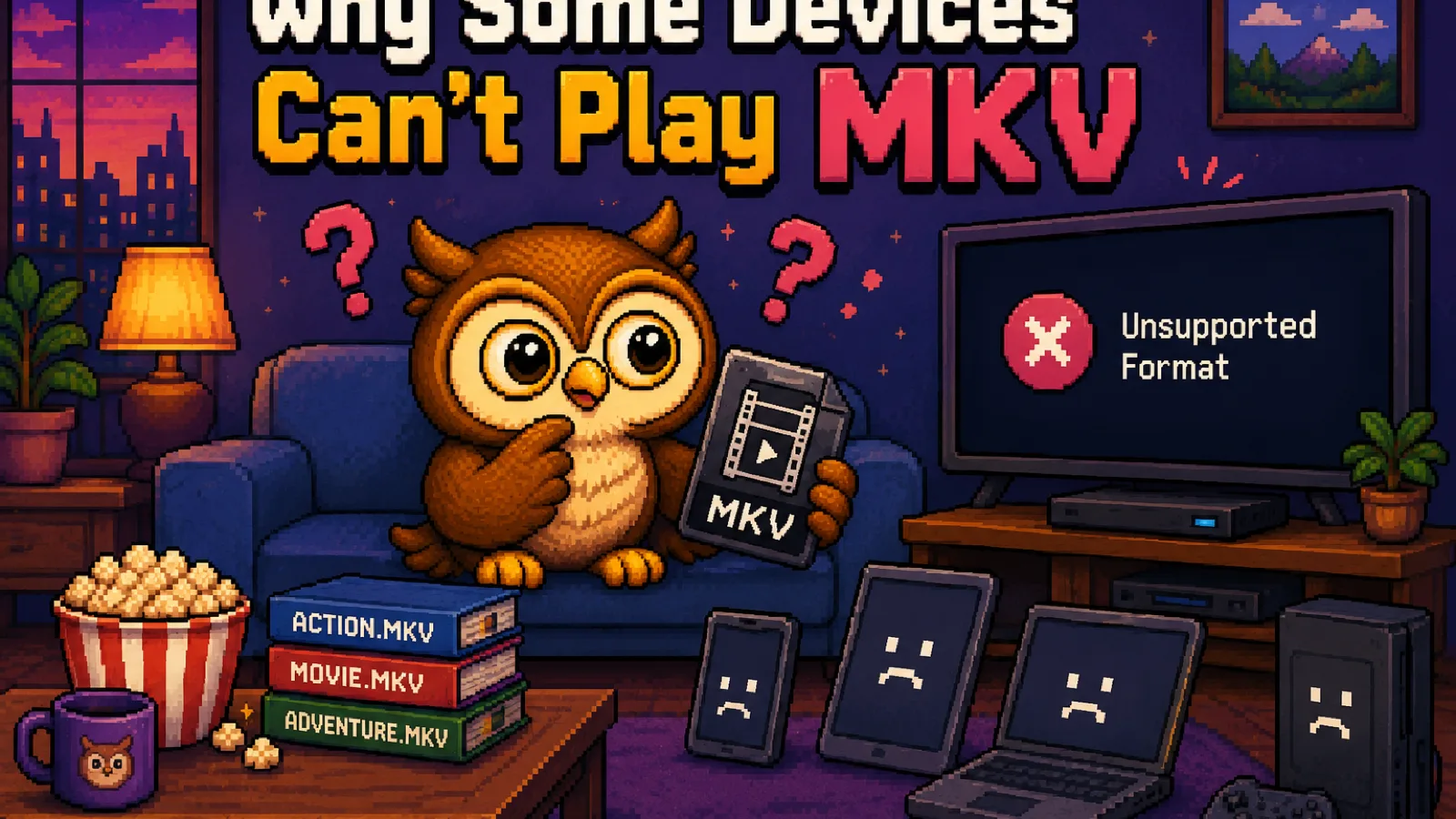
- Compatibility: weakest by far. Most phones, some smart TVs, QuickTime, and many upload forms won't touch it.
- File size: varies widely; it depends entirely on the codec inside, not the container itself.
- Use it for: archiving video with multiple audio/subtitle tracks, or software (like some media servers) built specifically to handle it.
If an MKV file won't open on your device, that's expected, since most phones and TVs were never built to read Matroska, and MKV to MP4 fixes it in seconds.
Quick comparison#
| Format | Compatibility | Typical file size | Best for |
|---|---|---|---|
| MP4 | Excellent everywhere | Small–moderate | Sharing, streaming, general use |
| MOV | Excellent on Apple only | Moderate–large | Editing on Mac, camera output |
| WebM | Strong in browsers only | Smallest | Embedding video on websites |
| MKV | Weak, mobile especially | Varies | Archiving multi-track video |
Step 1: Identify the format you have#
Check the file extension: .mp4, .mov, .webm, or .mkv. If you're not sure, most operating systems show the format in the file's properties or "Get Info" panel.
Step 2: Decide where the video needs to work#
If it needs to play on a random phone, in an email, or on social media, you want MP4. If it's headed onto a web page you control, WebM will load faster. If neither applies and you just want it to open somewhere it currently doesn't, MP4 is still the safest fallback.
Step 3: Convert with the matching tool#
Pick the tool that matches your starting format: MOV to MP4 for iPhone or Mac footage, MKV to MP4 for ripped or downloaded video with playback issues, or MP4 to WebM to shrink a file for the web. All three run entirely in your browser: the file is never uploaded anywhere, so it stays private and the conversion starts instantly instead of waiting on an upload bar.
Step 4: Check the result before you rely on it#
Play the converted file back before deleting the original. Container conversion between MP4 and MOV is typically lossless (same codec, new wrapper), but converting into WebM re-encodes the video, which is a good trade for smaller files but is worth a quick quality check on anything you care about.
Does the audio track survive a container conversion?#
Yes, audio carries over automatically in every conversion between these formats unless you specifically choose an option to remove it, which is a separate step, not something that happens by accident. If you do want a silent clip, Mute Video removes the audio track cleanly without touching the video.
FAQs#
Which video format has the smallest file size? WebM produces the smallest files at a given visual quality among these four, because its VP9/AV1 codecs compress more efficiently than MP4's typical H.264, which is why it's the default choice for web video.
Can I just rename a file to change its format? No, renaming the extension does not convert the file. The container structure and codec inside stay exactly the same, so the file will still fail to play wherever it failed before, just with a different name.
Does converting MOV to MP4 reduce quality? No, in almost every case a MOV to MP4 conversion is lossless, since both containers commonly hold the same H.264 or H.265 video codec and the conversion just repackages the existing data into a new wrapper.
Why won't MKV files open on my phone? Most phone operating systems and their built-in video players were never built to read the Matroska container, even though the video codec inside is often something they'd otherwise support fine. Converting to MP4 solves it immediately.
Is MP4 always the best choice? For playback compatibility, yes: MP4 works almost everywhere. But if file size matters more than compatibility, like video embedded on a fast-loading web page, WebM is the better pick.
What's the difference between a container and a codec? The container (MP4, MOV, WebM, MKV) is the file format that packages video, audio, and subtitles together, while the codec (H.264, H.265, VP9, AV1) is the compression method used on the video data inside it. Two files can share a container but use completely different codecs.
The short version#
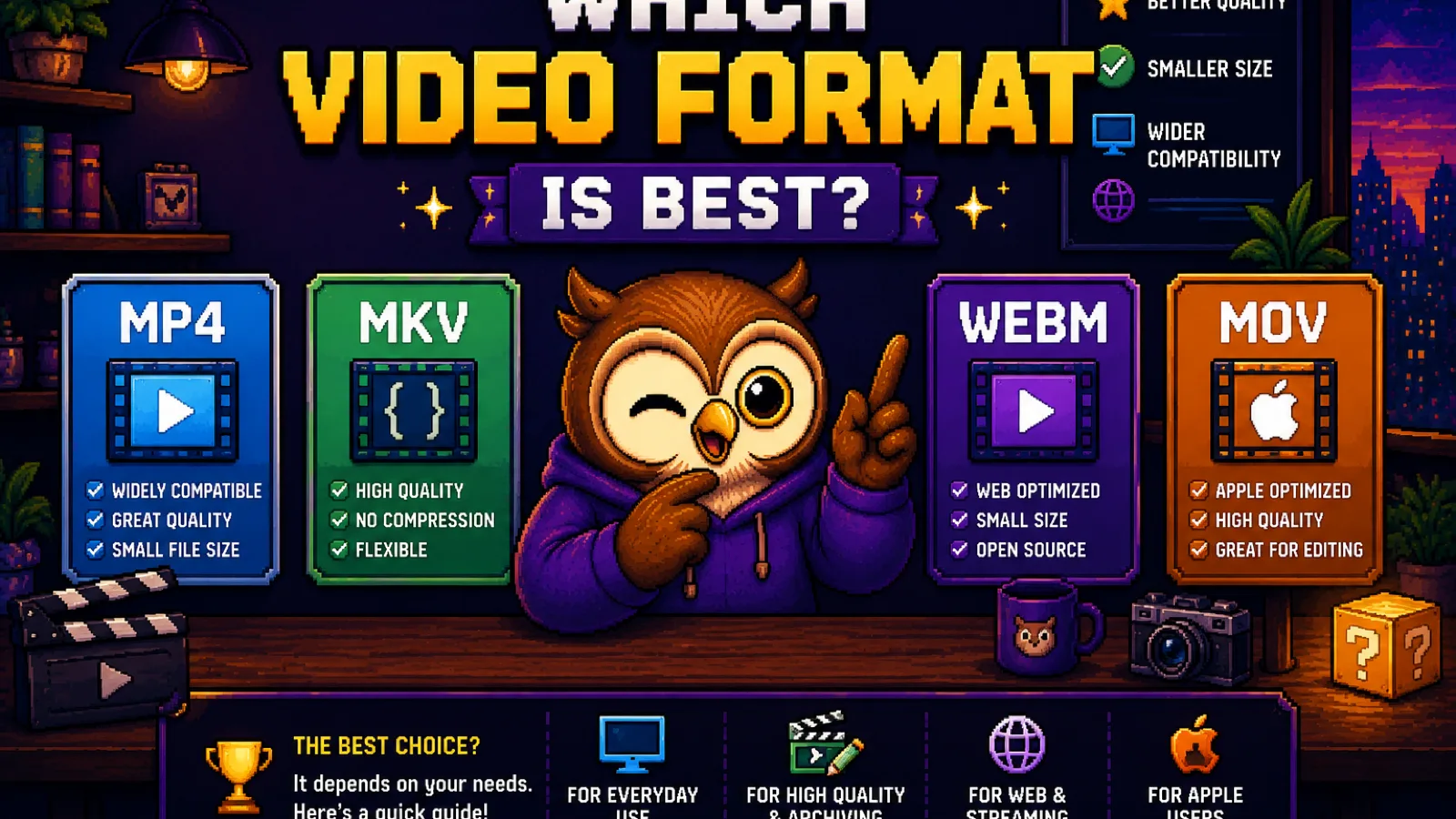
- MP4 is the safest default: use it when you need the video to play anywhere.
- MOV is Apple's format, great for editing, but often needs converting before it travels elsewhere.
- WebM produces the smallest files and is built for browsers, not general playback.
- MKV is the most flexible but the least compatible: expect to convert it before most devices will play it.
Whichever direction you need to go, the conversion runs locally in your browser: no upload, no account, no wait. Browse more format explainers on the file formats hub.
Try the tools
Free, private, and instant. Everything runs in your browser.