Best Video Compression Settings Explained
Resolution, bitrate, codec, and frame rate: the settings that actually shrink a video file, what to pick for each, and what to leave alone.
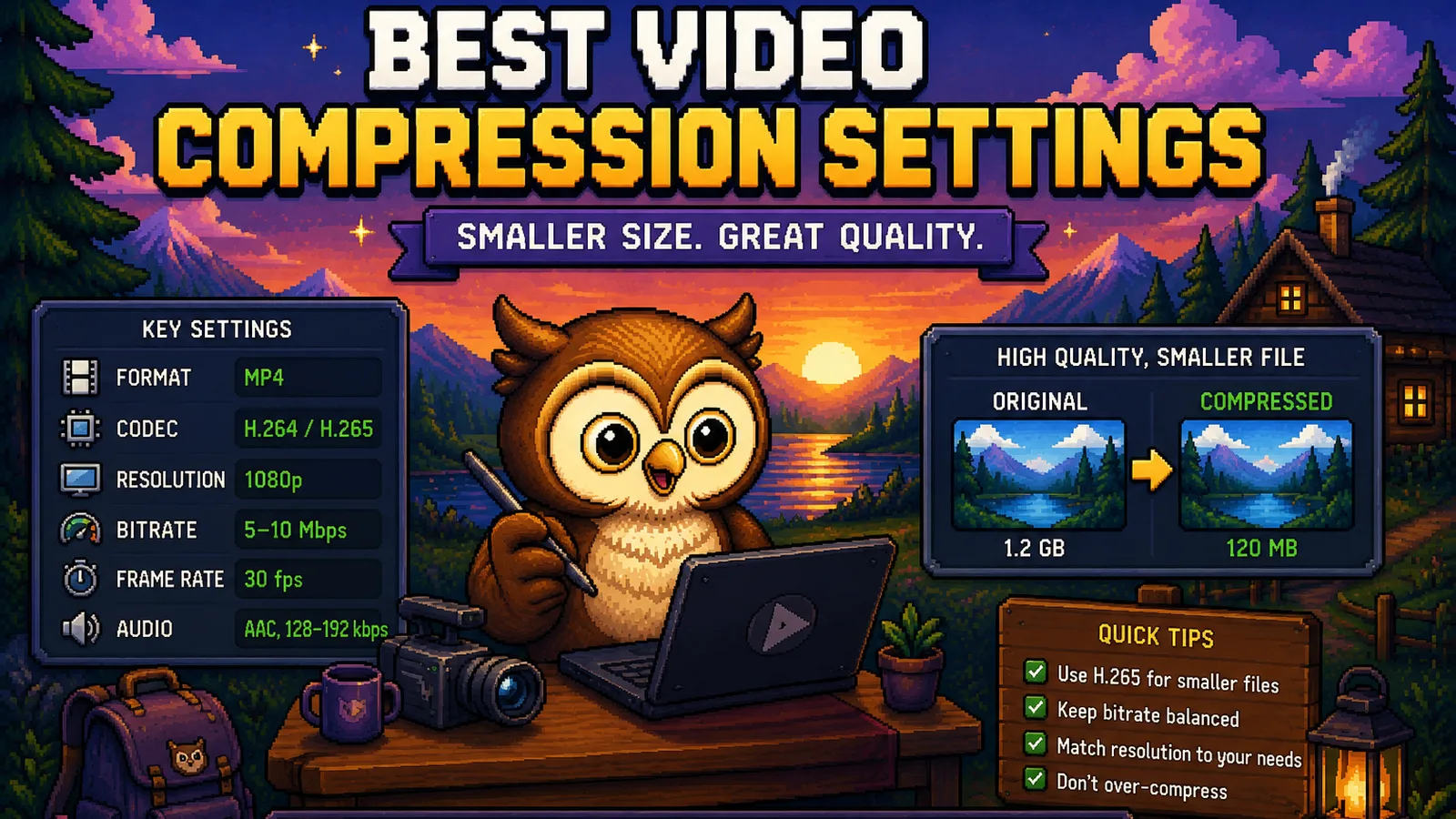
A 3-minute phone video can land anywhere between 30 MB and 900 MB depending entirely on the settings behind it, not the length. Two clips of identical length and identical footage can differ by 10x in size, and the difference isn't luck: it's four settings, each doing a specific job. Get them right and a video shrinks dramatically with no visible quality loss. Get them wrong and you either waste an upload cap on pixels nobody can see, or you compress hard enough to make the footage look bad. Run the file through the MP4 to WebM converter once you know what you're aiming for, and the settings below explain what "aiming for" actually means.
The four settings that decide file size#
Every video file's size comes down to four levers, and they don't all pull equally hard:
- Resolution – how many pixels per frame.
- Bitrate – how much data is spent per second of video.
- Codec – how efficiently that data is packed.
- Frame rate – how many frames per second.
Bitrate does the most work. Resolution and frame rate mostly just set how much bitrate you need to look clean; codec sets how far that bitrate stretches.
Resolution: match it to where the video actually plays#
Shooting or exporting at a higher resolution than the video will ever be viewed at is pure waste: every extra pixel needs to be encoded, stored, and (if it's being uploaded anywhere) transferred, for no visible benefit.
| Where it's going | Resolution that's enough |
|---|---|
| Social feeds, chat apps | 720p |
| YouTube, a website hero video | 1080p |
| Large displays, professional delivery | 4K |
If a clip is destined for Instagram or a group chat, exporting it at 4K just makes a bigger file with the same visible detail on a phone screen. Downscale to match the destination before you worry about anything else.
Bitrate: the setting that actually controls the size#
Bitrate is how many megabits of data get spent per second of footage, and it's the single biggest lever on file size: doubling bitrate roughly doubles file size for the same length and resolution. YouTube's own recommended upload bitrates are a useful reference point because they represent what a platform built on video actually considers "enough":
| Resolution | Reasonable bitrate range (H.264) |
|---|---|
| 720p | 2.5–5 Mbps |
| 1080p | 5–10 Mbps |
| 4K | 20–40 Mbps |
Below that range, blocky artifacts start showing up in motion and fine detail. Above it, you're spending storage and upload time on data the eye can't actually resolve. The honest way to find your floor is to compress at the low end of the range, watch the result at normal size (not zoomed in), and back off only if you can actually see the difference.
Codec: H.265 and WebM stretch the same bitrate further#
The codec is the algorithm doing the compressing, and a newer codec gets more visible quality out of the same bitrate:
- H.264 is the oldest of the three still in wide use. Nearly universal playback support, but the least efficient: it needs the most bitrate to look clean.
- H.265 (HEVC) typically holds the same visual quality as H.264 at roughly 40–50% less bitrate. Support is good but not universal: older devices and some browsers still don't play it natively.
- VP9 / WebM offers HEVC-like efficiency with no licensing fees, which is why it's the default for a lot of web video. Our MP4 to WebM tool converts to it directly, and it's worth reaching for whenever a video is being embedded on a page rather than downloaded.
None of this touches resolution or frame rate: switching codecs is the one lever that shrinks a file without changing what the video looks like at all.
Frame rate: don't pay for frames you didn't shoot#
Frame rate should almost always match the source, not get bumped up. A screen recording or talking-head video shot at 30 fps doesn't get smoother by re-encoding it at 60, it just doubles the frames the encoder has to store, for motion that was never there to begin with. The one place frame rate is worth dropping is fast, unavoidably large footage (drone or action shots) where trimming 60 fps down to 30 is a real, visible-nowhere size saving. Otherwise leave it alone.
Putting it together: a sane default#
For most everyday footage (a phone clip, a screen recording, something headed to a website or a chat app), this combination holds up well:
- Resolution: 1080p, or 720p if it's headed somewhere small like a social feed.
- Codec: H.265 if playback compatibility isn't a concern, otherwise H.264.
- Bitrate: the low end of the range for your resolution, checked by eye.
- Frame rate: whatever the source was shot at.
If you'd rather skip manually tuning bitrate and codec, running the file through MP4 to WebM or MOV to MP4 picks sensible defaults for you: both run entirely in your browser using WebAssembly, so the video never uploads anywhere before you get the smaller file back. For the full before-and-after workflow with a size comparison, see how to compress MP4 video files. If you're deciding between formats rather than settings, which video format has better quality covers that side of the decision, and the technology section of the blog has more on how these formats actually work under the hood.
Frequently asked questions#
What's the single most important setting for shrinking a video? Bitrate has the biggest effect on file size: cutting it in half roughly halves the file, while resolution and frame rate mainly determine how much bitrate you need in the first place.
Does a higher resolution always mean better quality? No, only if the bitrate is high enough to support it. A 4K video encoded at a low bitrate can look worse than a well-encoded 1080p file, because there isn't enough data to fill in that many pixels cleanly.
Should I always use H.265 instead of H.264? Use H.265 when you control both the encoding and playback, since it gets similar quality at roughly 40–50% less bitrate; stick with H.264 if the video needs to play reliably on older devices or software you don't control.
Why does my screen recording look bad even though the resolution is high? Screen recordings often ship with too low a bitrate for how much detail is on screen (text and sharp UI edges need more bitrate than natural footage), so the fix is usually raising bitrate, not resolution.
Is it better to compress video with an app or in the browser? A browser-based tool avoids uploading the file anywhere before you get the compressed result back, which matters for speed and privacy alike; ConvertOwl's MP4 to WebM and MOV to MP4 tools both process the file locally using WebAssembly.
Does converting to WebM always make a file smaller than MP4? Usually yes at the same visual quality, because the VP9 codec WebM commonly uses is more efficient than H.264, but the actual saving depends on the bitrate and codec the original MP4 was already using.
The short version#
- Bitrate is the setting that actually controls file size; resolution and frame rate mostly decide how much bitrate you need.
- Match resolution to where the video will be watched: 720p for social and chat, 1080p for most everything else, 4K only for large displays.
- H.265 or VP9/WebM get visibly more quality out of the same bitrate than older H.264, at the cost of some compatibility.
- Leave frame rate alone unless the source is unusually high and the footage doesn't need it.
- Run the result through MP4 to WebM or MOV to MP4: both compress locally in your browser with no upload.
Try the tools
Free, private, and instant. Everything runs in your browser.