What Image Size and DPI Do You Need for Printing?
300 DPI vs 72 DPI explained: how many pixels you need for 4×6, A4, and poster prints, how to check your photo, and how to resize it the right way.
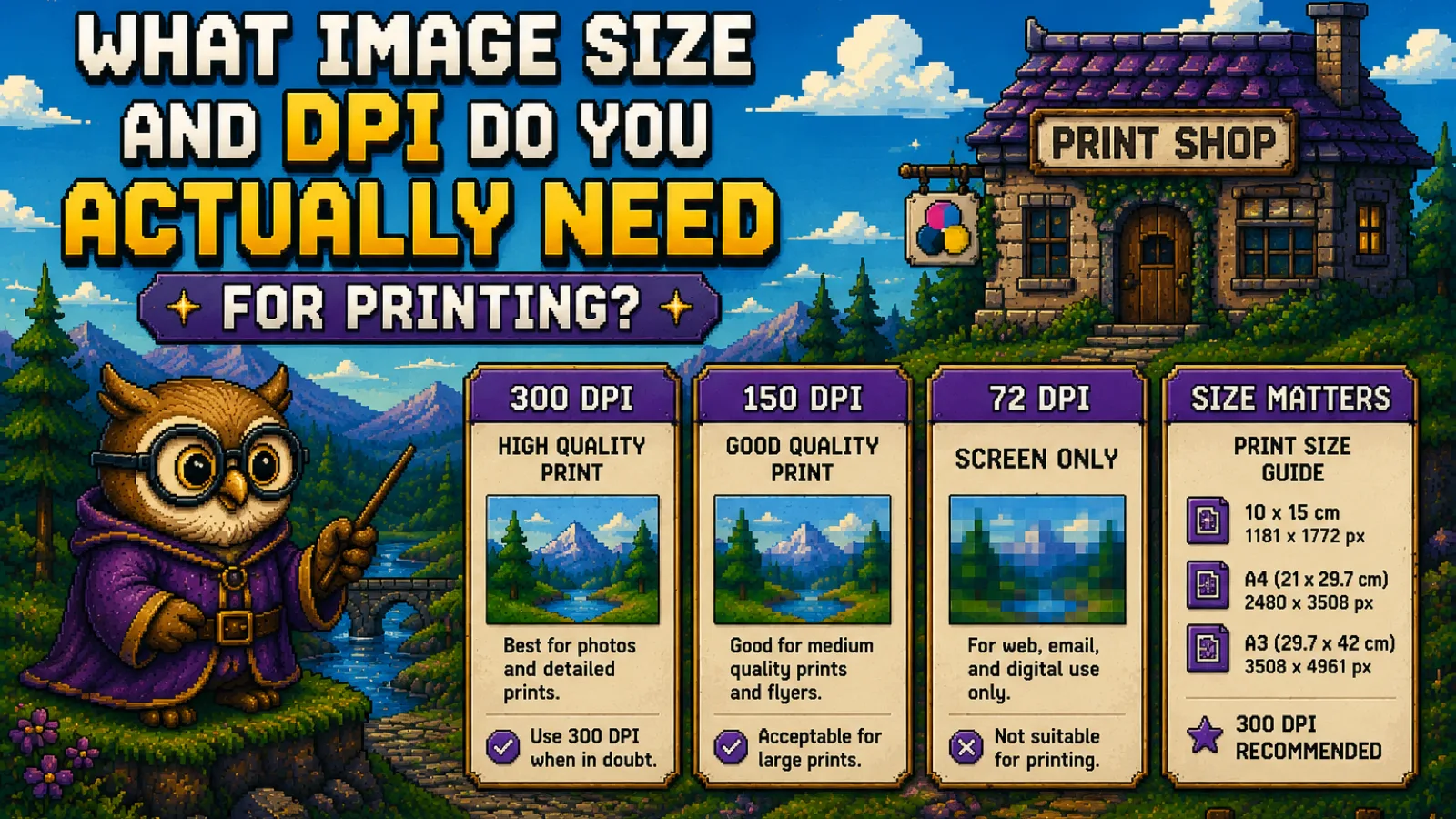
For a sharp print you need about 300 pixels for every inch of paper, so the image size you need is simply the print size multiplied by 300. A 4×6 inch photo needs 1200 × 1800 pixels, an A4 page needs 2480 × 3508 pixels, and a large poster seen from a few steps away can get by with around 150 pixels per inch. The "DPI" number stored in the file (72, 96, 300) does not make an image sharper on its own: what matters for print is how many pixels the image actually has. This guide explains the difference between DPI and PPI, gives you a table of pixel sizes for common prints, and walks through checking and resizing your own image.
DPI vs PPI: what the numbers actually mean#
PPI (pixels per inch) describes an image: how many of its pixels end up on each inch of paper. DPI (dots per inch) originally describes a printer: how many tiny ink dots it lays down per inch. A printer uses many dots to reproduce each pixel, so the two numbers measure different things, as Wikipedia's article on dots per inch explains. In everyday use, though, "300 DPI" almost always means "300 pixels per inch of print," and that's how print shops, photo labs, and this guide use it.
The relationship is plain arithmetic:
- Pixels needed = print size in inches × PPI
- Largest sharp print = pixels ÷ PPI
So a 3000-pixel-wide image prints 10 inches wide at 300 PPI, or 20 inches wide at 150 PPI. Same file, same pixels, spread over a smaller or larger area.
Why "72 DPI vs 300 DPI" is usually the wrong question#
Every image file can carry a resolution tag, and many cameras, phones, and editors write 72 or 300 there. That tag is just a label. It doesn't add or remove a single pixel. A 2400 × 3000 pixel image tagged "72 DPI" and the same image tagged "300 DPI" contain identical data, and both will print a sharp 8×10 inch photo. Some layout programs read the tag to decide how big the image appears when you first place it on a page, but you can scale it there, and the pixel count is still what decides sharpness.
The 72 figure comes from early Macintosh screens, which showed 72 pixels per inch, and it stuck around as a default long after screens moved on. If a print service asks for "300 DPI," what it really needs is enough pixels to give 300 per inch at your chosen print size.
How many pixels you need for common print sizes#
These figures are exact arithmetic (print size × PPI, rounded to whole pixels). Use the 300 PPI column for photos, cards, flyers, and anything people hold in their hands. The 150 PPI column is a common minimum for large prints that are viewed from further away, like posters and banners.
| Print size | At 300 PPI | At 150 PPI |
|---|---|---|
| 4 × 6 in | 1200 × 1800 px | 600 × 900 px |
| 10 × 15 cm | 1181 × 1772 px | 591 × 886 px |
| 5 × 7 in | 1500 × 2100 px | 750 × 1050 px |
| 8 × 10 in | 2400 × 3000 px | 1200 × 1500 px |
| US Letter (8.5 × 11 in) | 2550 × 3300 px | 1275 × 1650 px |
| A4 (210 × 297 mm) | 2480 × 3508 px | 1240 × 1754 px |
| A3 (297 × 420 mm) | 3508 × 4961 px | 1754 × 2480 px |
| 18 × 24 in poster | 5400 × 7200 px | 2700 × 3600 px |
| 24 × 36 in poster | 7200 × 10800 px | 3600 × 5400 px |
The A-series sizes come from the ISO 216 paper standard. For a metric size not in the table, divide the millimetres by 25.4 to get inches, then multiply by 300.
To put this in perspective, a typical 12-megapixel phone photo is 4032 × 3024 pixels. At 300 PPI that prints about 13.4 × 10 inches (34 × 25.6 cm), comfortably more than A4. A 24 × 36 inch poster at 300 PPI would need almost 78 megapixels, which is exactly why large prints are usually made at lower PPI: nobody stands close enough to a poster to see the difference.
Step 1: Decide the exact print size#
Write down the final print size, in inches or centimetres, before you touch the image. If your print has a border or will be trimmed (business cards and flyers often have a few millimetres of "bleed" around the edge), use the size your printer or print shop specifies, including that bleed.
Step 2: Work out the pixel dimensions you need#
Multiply each side of the print by 300 to get the pixel width and height, or by 150 for a large poster viewed from a distance. Or simply read the answer off the table above. An 8×10 print, for example, needs 2400 × 3000 pixels.
Step 3: Check how many pixels your image has#
Look up your image's pixel dimensions: on Windows, right-click the file and open Properties, then Details; on a Mac, open it in Preview and choose Tools, then Show Inspector. If your image has at least as many pixels as you need, you're fine. If it has somewhat fewer, it will still print, just a little softer. Dividing your pixels by the print size in inches tells you the PPI you'll actually get, and anything from roughly 200 upward usually looks good in a normal-sized photo print.
Step 4: Crop to the shape of the paper#
Print sizes have different shapes, and a photo that doesn't match will be cropped or get white bars. A 4×6 print is 3:2, an 8×10 is 5:4, A-series paper is about 1:1.41, and most phone photos are 4:3. Crop first with the crop tool so you choose what gets cut, rather than letting the printer decide.
Step 5: Resize and save at high quality#
If your image is much larger than the print needs, you can bring it down to the exact pixel size with the image resizer, which lets you type the width and height in pixels with the aspect ratio locked. That's useful when a print service has an upload size limit, or when you're placing the image in a document. If the file is still too big to upload or email, run it through the image compressor, but keep the quality setting high: heavy JPG compression shows up in print as blocky patches and halos around edges. Our guide to compressing images without losing quality explains where that line sits. Both tools work entirely in your browser, so your photos are never uploaded.
What if your image is too small?#
Making a small image bigger with a normal resize doesn't add detail. The resizer has to invent the new pixels by blending their neighbours, so a big enlargement looks soft or blurry rather than sharp. A modest stretch is often acceptable, but turning a 600 × 800 pixel image into a sharp A4 print is not something any regular resize can do. Your best options are to find the original, full-resolution file (photos sent through messaging apps and social networks are often scaled down), print smaller, or accept a softer result.
Logos and illustrations are the exception: if you have them as vector files, they have no pixels at all and print sharp at any size. Our guide to vector vs raster images covers when that applies.
Frequently asked questions#
What DPI should I use for printing photos? 300 DPI (pixels per inch) is the standard target for printing photos, because it looks sharp even when the print is held close. For large posters viewed from a distance, around 150 is usually enough.
Is 72 DPI good enough for printing? 72 DPI is not good enough for printing if it means 72 pixels per inch of paper, because the pixels become visible and the print looks blurry. But a file merely tagged "72 DPI" can still print sharply if it has enough pixels for the print size, since the tag itself doesn't change the image.
How many pixels do I need to print a 4×6 photo? You need 1200 × 1800 pixels to print a 4×6 inch photo at 300 DPI. At 150 DPI, the absolute minimum for a soft but usable print, it's 600 × 900 pixels.
How many pixels is an A4 page at 300 DPI? An A4 page at 300 DPI is 2480 × 3508 pixels. At 150 DPI it's 1240 × 1754 pixels.
Does changing the DPI make an image sharper? No, changing the DPI setting alone does not make an image sharper, because it only changes a label and not the number of pixels. Sharpness in print depends on how many pixels the image has compared to the size you print it at.
How large can I print a 12-megapixel photo? A 12-megapixel photo (4032 × 3024 pixels) prints sharply up to about 13 × 10 inches at 300 DPI. At 150 DPI, for a poster viewed from a distance, it can go to about 27 × 20 inches.
The short version#
- Pixels needed = print size in inches × 300 for anything viewed up close, × 150 for large posters.
- The DPI tag in a file is just a label: pixel count is what matters.
- 4×6 in needs 1200 × 1800 px; A4 needs 2480 × 3508 px.
- Crop to the paper's shape, then use the image resizer for exact dimensions and the image compressor only gently.
- Find more image tools in the image tools hub, and more practical guides in our how-to articles.
Try the tools
Free, private, and instant. Everything runs in your browser.