PNG vs JPG: What's Actually the Difference?
PNG vs JPG explained: lossless vs lossy, transparency, file size, and a simple rule for when to use PNG and when JPG is the better pick.
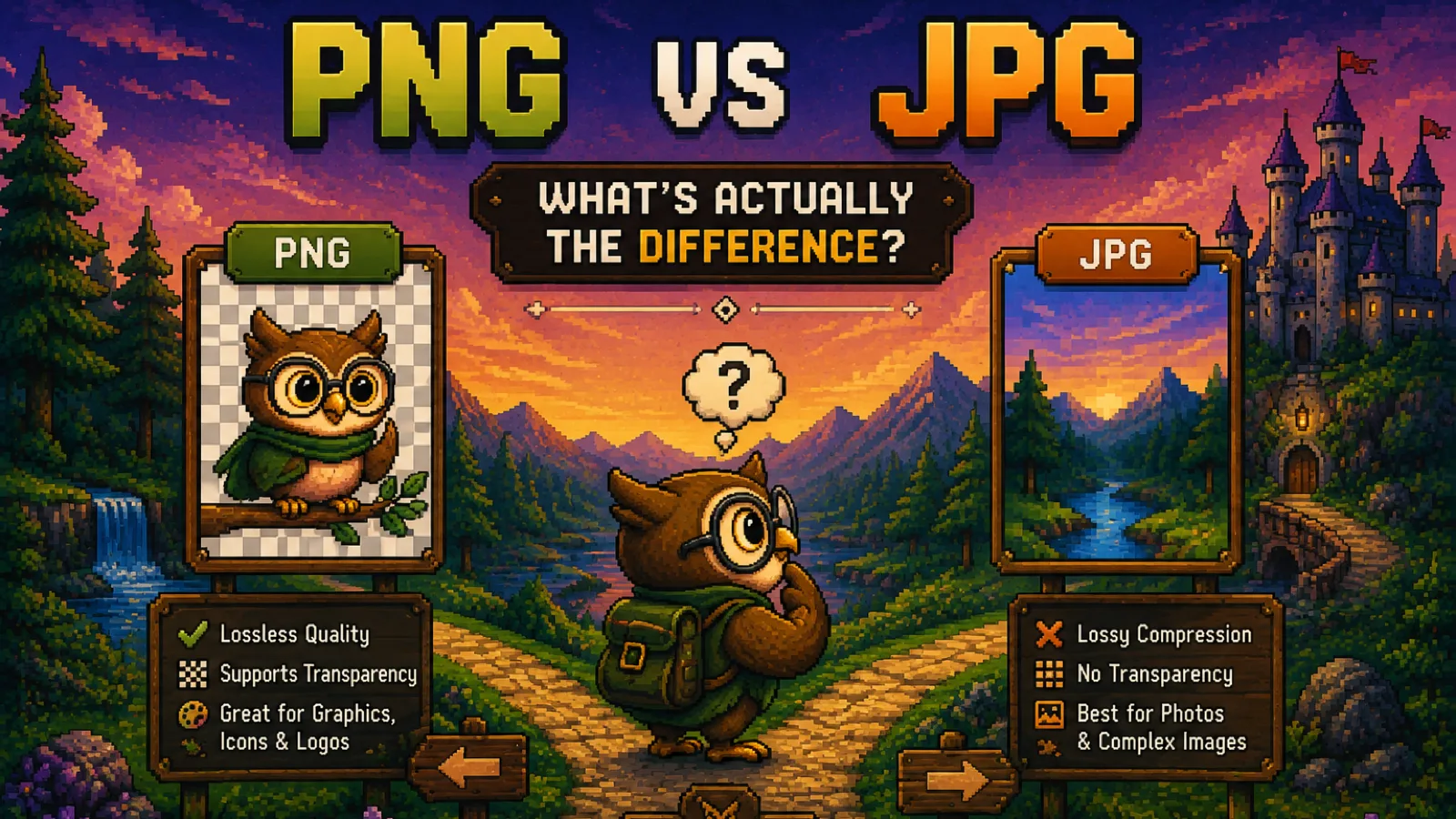
PNG and JPG are the two image formats you meet most often, and the difference between them comes down to one design decision: PNG keeps every pixel exactly as it was, while JPG throws away detail your eye is unlikely to miss in exchange for a much smaller file. That one choice explains almost everything else, from why screenshots look crisp as PNG to why your phone saves photos as JPG. This guide walks through what actually differs between PNG and JPG and gives you a simple rule for picking the right one.
What PNG actually is#
PNG (Portable Network Graphics) is a lossless image format. It was created in the mid-1990s as a patent-free replacement for GIF, and its W3C specification still defines it today. Lossless means that when you open a PNG, you get back exactly the pixels that were saved, with nothing approximated or smoothed over.
PNG has two other strengths that matter in practice:
- Transparency. PNG supports a full alpha channel, so each pixel can be fully opaque, fully transparent, or anywhere in between. That's why logos, icons, and cut-out product shots are almost always PNG.
- Sharp edges stay sharp. Text, lines, and flat areas of color come through cleanly, with no blur or blocky noise around them.
The trade-off is size. Because PNG never discards information, a detailed photo saved as PNG is usually far larger than the same photo saved as JPG.
What JPG actually is#
JPG (or JPEG) is a lossy format standardized in the early 1990s, and it's still the default for photographs almost everywhere. Instead of storing every pixel, it splits the image into small blocks and simplifies the fine detail and color variation inside each one, keeping what your eye notices most. The MDN guide to image formats covers how this works if you want the technical version.
For photos, this works remarkably well: skies, skin, and foliage have so much natural variation that the simplification is hard to see at normal quality settings. JPG has two real limits, though:
- No transparency. Every pixel in a JPG is solid. A transparent background has to be filled with a color, usually white.
- Edges suffer. Text, line art, and screenshots tend to show fuzzy halos and blocky artifacts around sharp edges, because that's exactly the kind of detail JPG compression simplifies.
PNG vs JPG: the direct comparison#
| PNG | JPG | |
|---|---|---|
| Compression | Lossless: every pixel is preserved | Lossy: some detail is discarded |
| Transparency | Yes, full alpha channel | No, every pixel is solid |
| File size for photos | Large | Much smaller |
| Text, logos, screenshots | Crisp and clean | Prone to blur and artifacts around edges |
| Re-saving the file | No quality loss, however many times | Each re-save can lose a little more detail |
| Best for | Graphics, logos, icons, screenshots, anything with transparency | Photographs and complex, realistic images |
If you want the deeper background on why lossy and lossless formats behave so differently, our guide to lossy vs lossless compression covers it in plain English.
When to use PNG#
Use PNG when accuracy or transparency matters more than file size:
- Logos and icons, especially ones that sit on top of different background colors.
- Screenshots, particularly ones with text, menus, or code you want to stay readable.
- Diagrams, charts, and illustrations with flat colors and hard edges.
- Working files you'll edit and save repeatedly, since PNG never degrades on re-save.
If you have a JPG that needs to go somewhere that expects PNG, our JPG to PNG converter handles it in your browser. Just know that it won't bring back detail the JPG already discarded: the result is a PNG copy of the JPG, at a larger file size.
When to use JPG#
Use JPG when the image is a photograph and file size matters:
- Photos on a website, where smaller files mean faster pages.
- Email attachments and messaging, where size limits and slow connections are common.
- Uploading to forms and platforms that ask for a photo and cap the file size.
- Sharing a large batch of photos, where PNG versions would add up quickly.
To turn a PNG into a JPG, use our free PNG to JPG converter. It runs entirely inside your browser, so your images never upload to a server, it handles up to 20 files at once, and it defaults to 90% quality, which keeps photos looking clean. Any transparent areas are filled with white, since JPG can't store transparency.
What about file size?#
For photos, JPG is the clear winner on size, and PNG is only worth the extra weight when you need lossless quality or transparency. For simple graphics with a few flat colors, a PNG can be competitive or even smaller, because lossless compression handles large uniform areas efficiently.
If a file is still too big after picking the right format, run it through our image compressor, which can shrink JPG and PNG files without changing their format. For more techniques, see our guide on compressing images without losing quality. And if you're building for the web, it's worth knowing that newer formats like WebP can cover both jobs; our explainer on what a WebP file is walks through when that makes sense.
Frequently asked questions#
Is PNG better quality than JPG? PNG preserves an image exactly because it's lossless, while JPG discards some detail to save space, so PNG is technically higher fidelity. For ordinary photos at a normal JPG quality setting, though, most people can't see a difference, and the JPG will be much smaller.
Does converting JPG to PNG improve quality? No, converting a JPG to PNG cannot restore detail that JPG compression already removed. The PNG will be an exact copy of the JPG as it is now, usually at a larger file size.
What happens to transparency when I convert PNG to JPG? JPG has no transparency, so transparent areas of a PNG are filled with a solid color when you convert, and ConvertOwl's PNG to JPG tool fills them with white. If you need to keep the transparent background, keep the image as PNG.
Why do my screenshots look blurry as JPG? JPG compression simplifies fine detail around sharp, high-contrast edges, which is exactly what text and interface elements in a screenshot are made of. Save screenshots as PNG to keep text crisp.
Should I use PNG or JPG for a website? Use JPG for photographs and PNG for logos, icons, and graphics that need transparency or sharp edges. That combination keeps pages fast without making graphics look fuzzy.
Does saving a JPG over and over reduce its quality? Yes, each time a JPG is edited and saved again, it goes through lossy compression again, which can gradually add artifacts. PNG doesn't have this problem, so keep a PNG or original copy if you plan to edit an image many times.
The short version#
- PNG is lossless and supports transparency: use it for logos, icons, screenshots, and graphics with text or hard edges.
- JPG is lossy and much smaller for photos: use it for photographs you share, upload, or put on a website.
- Convert with PNG to JPG or JPG to PNG as needed, and use the image compressor if a file is still too large.
- More format comparisons live in our file formats guides, and every image tool is in the image tools hub.
Try the tools
Free, private, and instant. Everything runs in your browser.